

Actor supports a minimal training to teach how should emails be considered. This option takes priority over Custom Filters and Default Labelling.
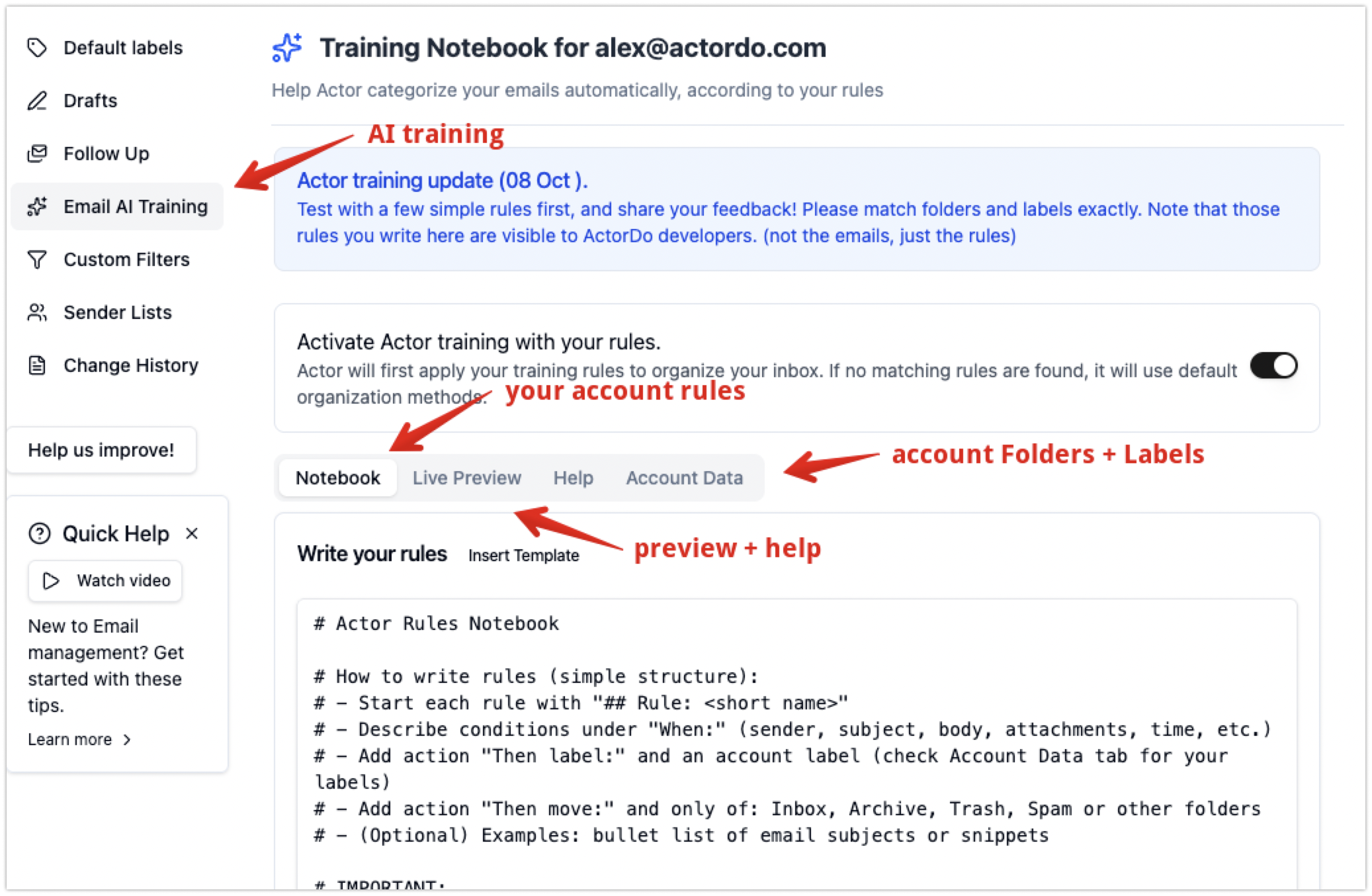
How it works:
- currently Actor users the rules you set to create a very small unique model for your account (not this is applied per account, so if you have multiple accounts, you need to recreate the rules)
- next step will be for Actor to detect rules based on your behaviour.
- rules are like a text based notebook, with a specific structure/format
What is an AI Rule?
A rule is like an instruction you give Actor Assistant how to filter emails to do what you want.
When you see an email from sales@example.com move it to Promotion folder.
In order for the system to understand and learn from you, the rule has a specific structure and format.
- Start each rule with “## Rule: <short name>”
- Describe conditions under “When:” (sender, subject, body, attachments, time, etc.)
- Add action “Then label:” and an account label (check Account Data tab for your labels)
- Add action “Then move:” and only of: Inbox, Archive, Trash, Spam or other folders
- (Optional) “Then mark:” and only: important, not important, starred, not starred, read, unread (can be 2 separated with comma)
- (Optional) Active: true or false . This way you can easily deactivate a rule, without deleting or commenting all lines. Default is true.
- (Optional) Match: all or any. This will match all or at least one of When lines with conditions
- (Optional) Examples: bullet list of email subjects or snippets
IMPORTANT:
- Lines starting with # are comments and ignored.
- Blank lines are ignored.
- You can have multiple labels/actions by repeating “Then …” lines.
- Match: any|all (default any) to combine multiple When conditions
- If overlapping actions (Then), the last one applies.
Conditions of email
The way ActorDo builds this small model is by grouping together signals extracted from email. When creating the When (conditions that are applied), you can reference in natural language
- the whole email context, including body, subject
- sender, headers, addressing type.
- attachment types (Actor does not read attachments at this moment, 24.11.2025).
While this is not an exhaustive list, feel free to consider using it as you want, because it can detect information it doesn’t have automatically.
Example AI Rules
## Rule: Invoices to Finance
When: sender contains invoices@ or domain contains invoices.com; subject contains invoice OR receipt
Then label: Finance
Then mark: unread, starred
Active: yes
Examples:
– Subject: “Invoice MEN-2025-0041”
– Subject: “Your monthly receipt”
Some advice on conditions
- better to write multiple When lines and combine them with Match (any or all) instead of having a very long When line.
Because this section is going to be a long-term feature of Actor, you can either contact us on how to create rules and suggest ideas/feedback.