
ACTOR + SLACK
Get work done from Slack.
Ask Actor in the workspace where your team already talks. Find what needs attention, prepare responses, and turn follow-ups into tasks using your connected Actor account.
A workspace admin connects Slack once; each person then links their own Actor account.
DIRECT MESSAGE WITH ACTOR
From question to next action
“Which customer emails need my reply today? Create a task for the urgent one.”
Actor checks the connected inbox, summarizes what needs attention, and creates the requested follow-up task.
Illustrative example · Results depend on connected accounts and permissions.
SLACK CONVERSATION
See Actor in a Slack direct message.
Ask a question, then give Actor a follow-up instruction in the same conversation.
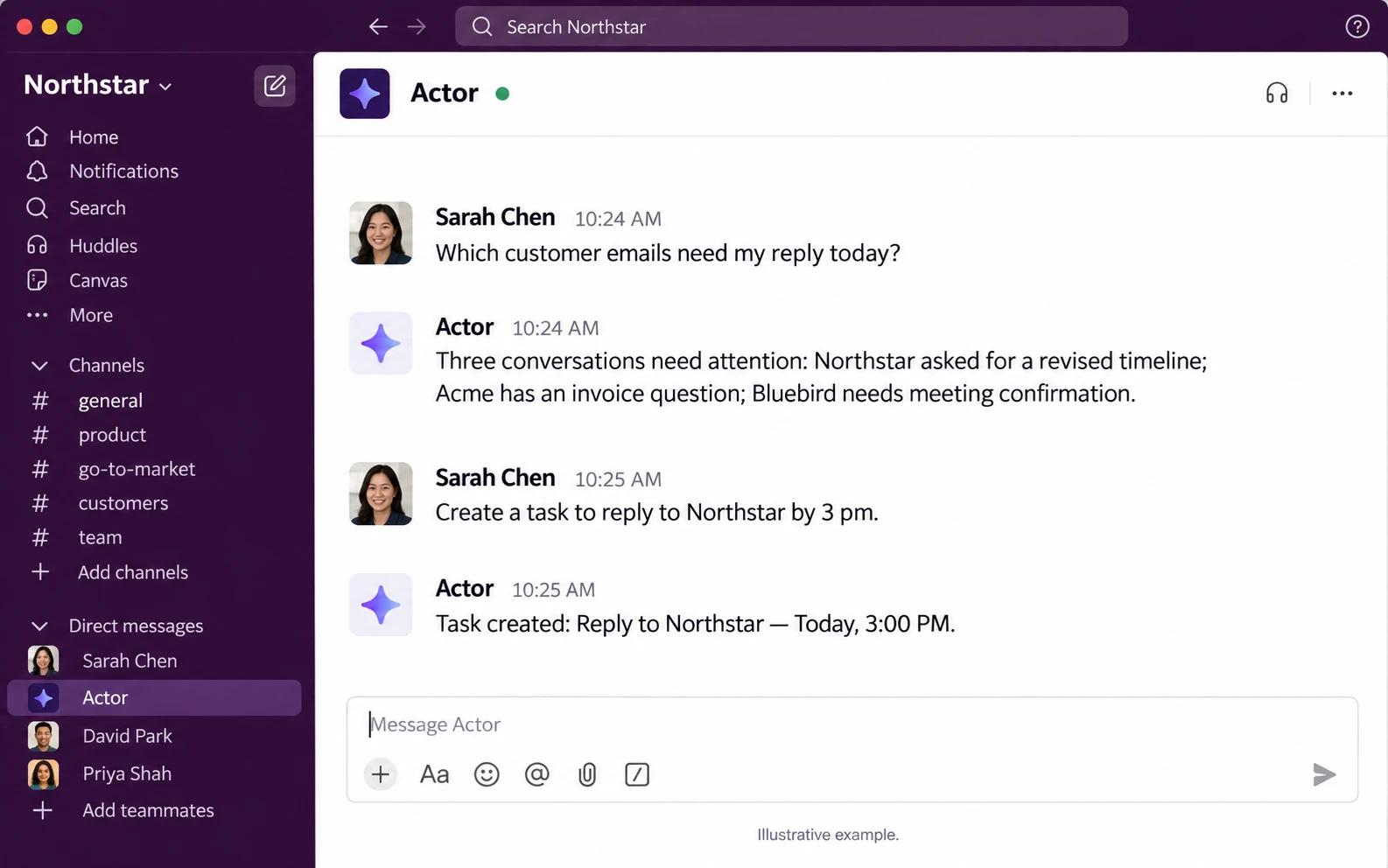
Illustrative product mockup. Results depend on connected accounts and permissions.
WHY USE ACTOR HERE
Your assistant, within the conversation.
Bring Actor’s help into the flow of the workday without making everyone learn a new command language.
01 / ASK NATURALLY
Just say what you need
Use a direct message or /actor to ask about connected email, calendar, and tasks in everyday language.
02 / ACT ON IT
Move from answer to action
Ask Actor to prepare a reply, create a task, or help plan a meeting after finding the information you need.
03 / STAY FOCUSED
Keep work moving in Slack
Get a useful response in Slack, then continue the conversation or open Actor for a deeper view.
REAL WORK, ONE CONVERSATION
Three ways to use Actor in Slack.
Start with a simple question and add a follow-up when you are ready to act.
PRIVATE / DIRECT MESSAGE
Catch up on a customer
“Find unread emails from Northstar, summarize the open questions, and draft a reply for my review.”
PRIVATE / SLASH COMMAND
Prepare for the day
“/actor What meetings do I have today, and which tasks are due before them?”
CHANNEL / MENTION
Ask a shared question
Mention @Actor in a channel for a general request. Actor replies in a thread; use a private conversation for personal email and calendar details.
GET STARTED
Connect once. Ask when you need help.
01
Connect your workspace
An Actor organization admin opens Organization Settings → Channels / Integrations and connects the Slack workspace.
02
Link your identity
The first time you message Actor, follow the private link to sign in and link your Slack identity to your Actor account.
03
Start asking
Use /actor, send Actor a direct message, or mention @Actor in a channel where the app is present.
The admin needs an existing Actor organization. Access to personal email, calendar, and tasks follows each user’s connected accounts and permissions.
Bring Actor into your Slack workflow.
Connect the workspace, link your account, and start with one useful question.