
ACTOR + MICROSOFT TEAMS
Your work assistant in Teams.
Ask Actor in a private Teams chat about the work behind your conversations. Find relevant email, prepare for meetings, and capture next steps using your connected Actor account.
Teams availability depends on your organization’s app setup. Contact us to arrange access.
PERSONAL CHAT WITH ACTOR
A focused answer, where you work
“What should I handle before my customer call this afternoon?”
Actor brings together relevant messages, calendar context, and open tasks, then helps you decide the next step.
Illustrative example · Results depend on connected accounts and permissions.
TEAMS CONVERSATION
See Actor in a Teams personal chat.
Get prepared for a meeting and ask Actor to draft the next response without leaving Teams.
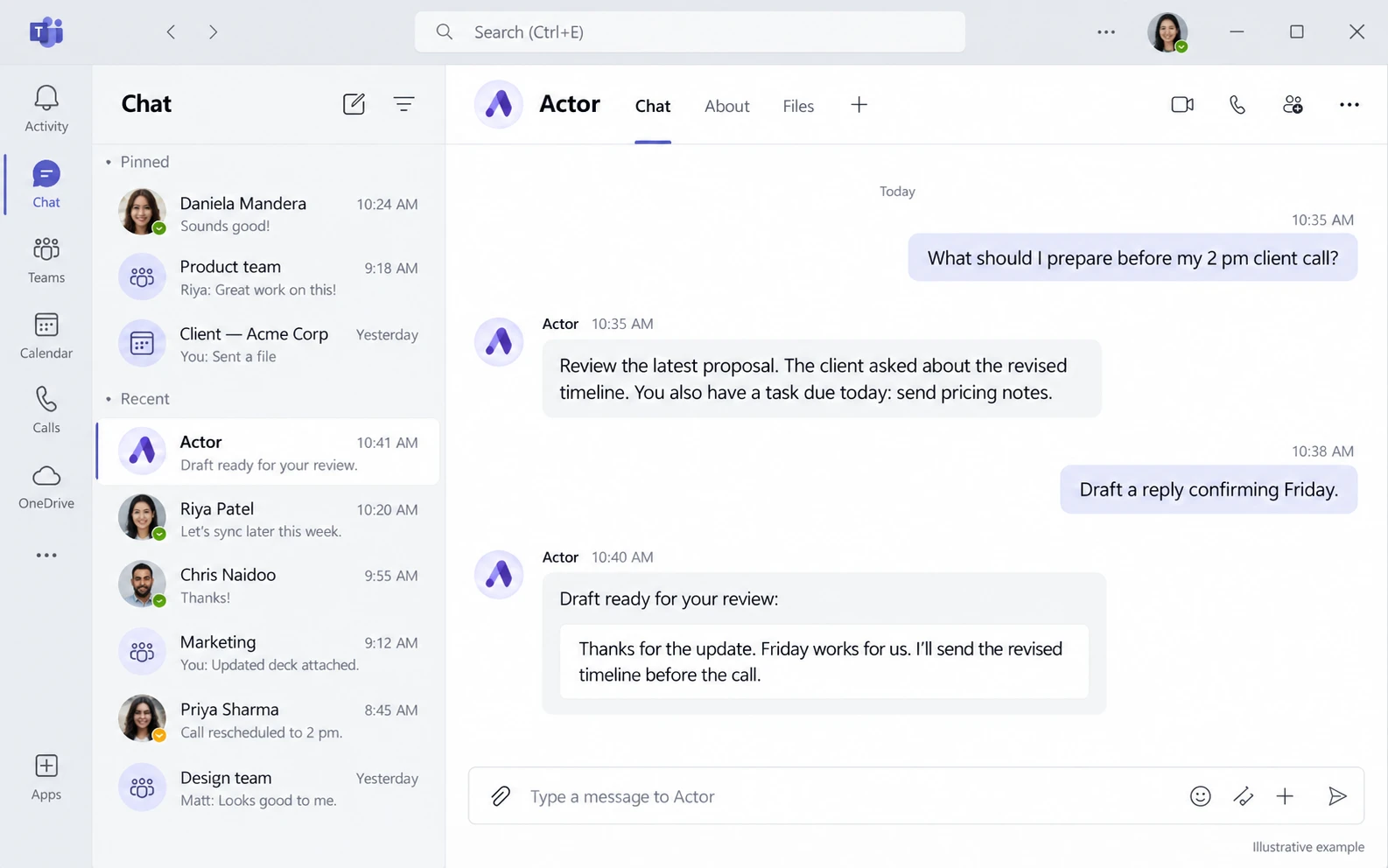
Illustrative product mockup. Results depend on connected accounts and permissions.
WHY USE ACTOR HERE
Less switching. More follow-through.
Use a familiar Teams chat to ask Actor for help with the work connected to your account.
01 / ASK IN CHAT
Use natural language
Message Actor in a one-to-one Teams chat. Ask a question or give a clear instruction without learning a special syntax.
02 / SEE THE CONTEXT
Bring work together
Actor can work with connected email, calendars, and tasks to help you prepare, prioritize, and follow up.
03 / TAKE THE NEXT STEP
Turn answers into work
Ask for a draft, a new task, or a meeting-related action after reviewing what Actor found.
REAL WORK, ONE CONVERSATION
Useful requests for a busy workday.
These examples are for Actor’s private Teams chat, where replies return to your conversation.
BEFORE A MEETING
Prepare with context
“Summarize the latest customer email and show my open tasks before our 2 pm call.”
AFTER AN UPDATE
Capture the follow-up
“Draft a reply confirming the revised date and create a task to send the proposal on Friday.”
AT THE START OF THE DAY
Find the priorities
“Which unread messages need my attention, and what is due today?”
GET STARTED
A simple start for your organization.
01
Arrange Teams access
Your Microsoft 365 or Teams admin enables Actor for the organization. Contact us for the current setup path.
02
Link your Actor account
Open Actor in a personal Teams chat and follow the sign-in link to connect your Teams identity.
03
Ask privately
Send a natural-language request in the chat. Actor replies there using the services available to your account.
The current Teams experience focuses on one-to-one chat. Availability and admin approval depend on your organization’s Microsoft setup.
Work with Actor inside Teams.
Talk to us about enabling the app for your organization and trying the personal chat experience.