

How does Email Recall work in Outlook
Outlook has a feature called “Recall This Message”, but most users discover it rarely works the way they hope. Here is exactly how it works, when it can succeed, and the limitations you must be aware of.
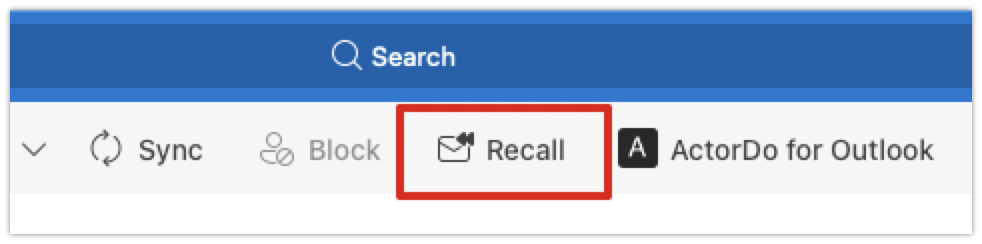
The Recall Feature is available when selecting any Email from Sent folders. You will get a Recall button like the one below.
What Email Recall Actually Does
When you use Recall This Message, Outlook attempts to:
- Delete the original message from the recipient’s mailbox
- (Optionally) Replace it with a new message you send
This is not an edit-the-past feature. It is an attempt to remove an already delivered email under very specific conditions.
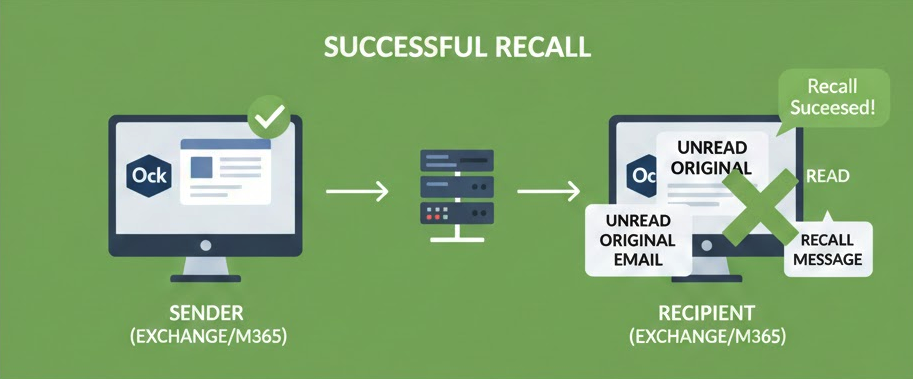
When Recall Works
Email Recall only works under all of these conditions:
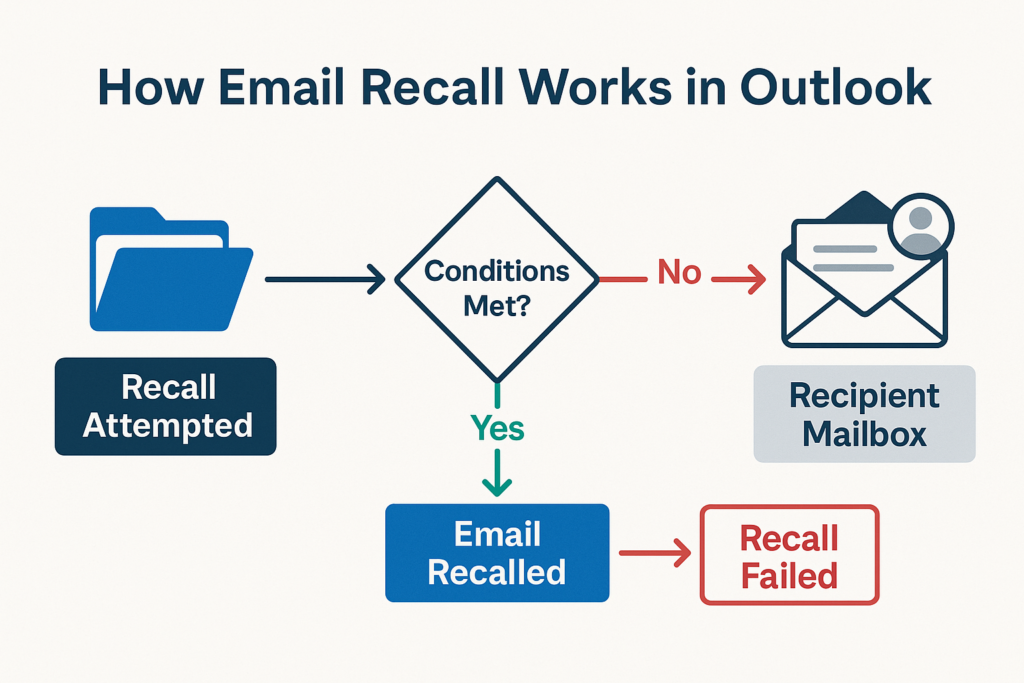
1. Both sender and recipient use Microsoft Outlook on the same Exchange / Microsoft 365 organization
- Must be an Exchange mailbox or Microsoft 365 business mailbox
- Recall does not work with Gmail, Yahoo, custom IMAP accounts, or Outlook.com personal accounts
- Does not work across organizations (e.g., sender at Company A, recipient at Company B)
2. The recipient has not opened the email yet
If the message was already opened, Recall fails immediately.
3. The recipient is using the Outlook desktop app
Recall does not function if the recipient uses:
- Outlook on the web (OWA)
- Outlook mobile app
- A third-party email client
4. The original email is still in the recipient’s Inbox
If the recipient has:
- moved it to another folder
- archived it
- filtered it
- applied rules
→ Recall will fail.
Common Reasons Email Recall Fails
Most recalls fail because users assume it works like “undo send.” It does not.
Recall will fail if:
- The recipient opened the email (even by preview pane)
- The recipient uses mobile Outlook
- The recipient uses web Outlook
- The email was auto-moved by rules
- Sender and recipient are not in the same Microsoft org
- The recipient does not permit recall settings
Even inside the same company, success rates are unpredictable.
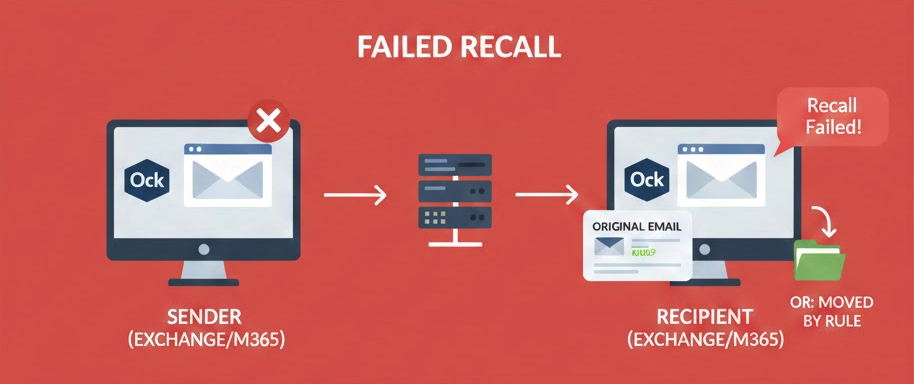
What the Recipient Sees
If Recall succeeds, the original email disappears and may be replaced with your updated message.
If Recall fails, the recipient often gets a new message informing them that you attempted a recall — which may draw more attention to the original message.
Important: Message Recall Is Not “Undo Send”
Gmail and Outlook both have an “Undo Send” feature, but that only delays sending for a few seconds.
Once an email leaves your Outbox:
Recall is not guaranteed, not real-time, and not private.
Best Alternative: Use “Undo Send”
Outlook offers a true safety feature that works 100% of the time:
Settings → Mail → Compose and reply → Undo send
Set the delay to 5–30 seconds so messages aren’t sent immediately.
This prevents most accidental sends without relying on the unreliable recall system.
Best Practices to Avoid Needing Recall
- Enable Undo Send
- Review recipients with “Check Names”
- Avoid autocomplete mistakes by clearing old suggestions
- Use delayed sending rules for high-risk messages
- Draft sensitive replies in a separate window before sending