How to disconnect any app from your Microsoft account
When you connect Actor, or any other third-party app, to your Microsoft account, you give that app permission to access specific Microsoft data, such as email, calendar, profile, or other account information.
You can remove that access anytime from your Microsoft account settings.
How to remove app access from a Microsoft account
- Go to your Microsoft account page https://account.microsoft.com/
- Sign in with the Microsoft account you used to connect the app.
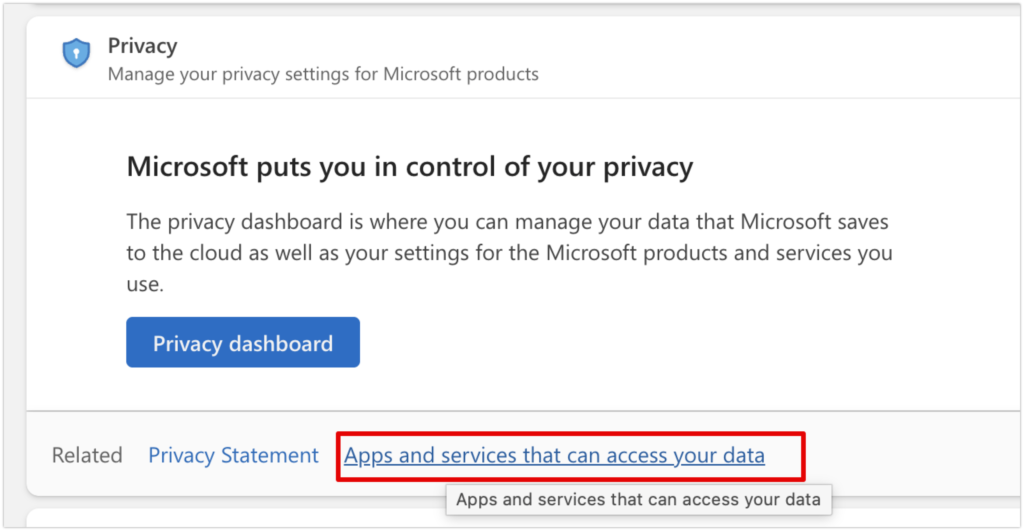
- Open the Privacy or Apps and services section.
- Find the section for apps and services that have access to your account.
- Look for Actor or the app you want to disconnect.
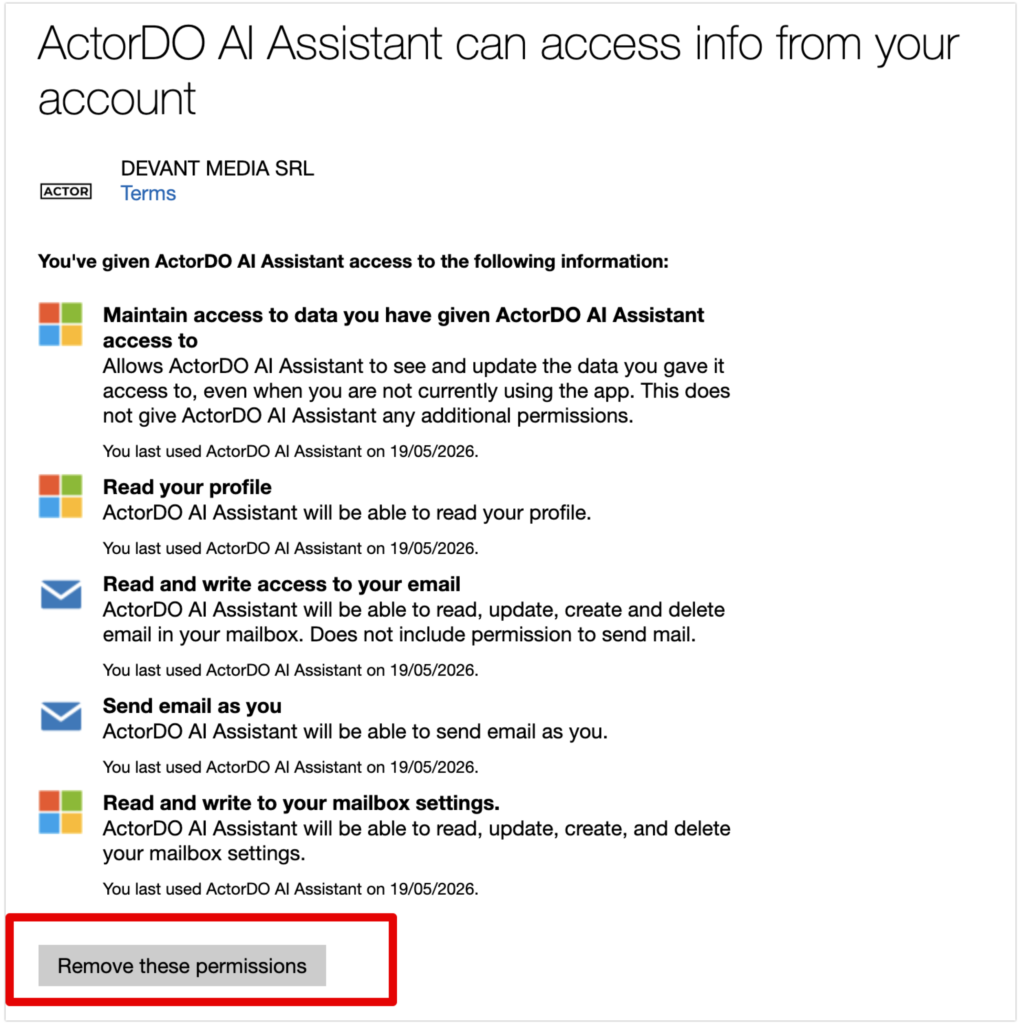
- Select the app.
- Choose Remove access or Revoke permissions.
After you remove access, the app will no longer be able to use your Microsoft account permissions.
For work or school Microsoft accounts
If you connected Actor using a Microsoft 365 work or school account, app permissions may be managed through the My Apps portal or by your organization’s Microsoft administrator.
Click Edit under the app you want to remove. You can also use search to filter the apps.
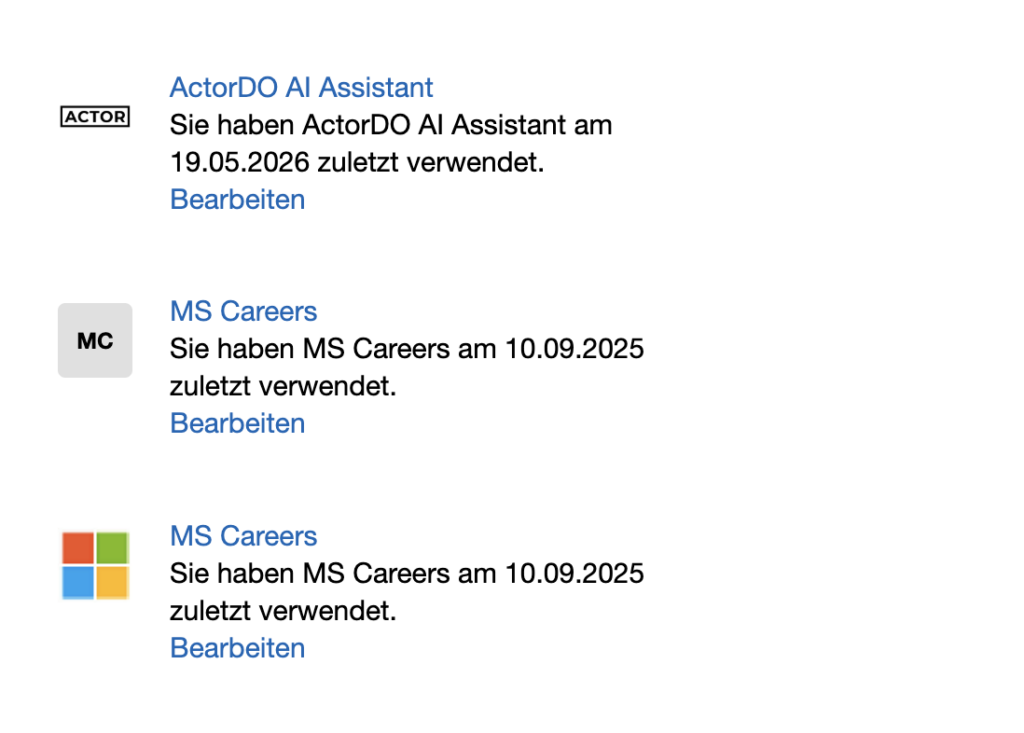
In the My Apps portal, Microsoft allows users to review app permissions and revoke access when available. Some apps may require administrator approval or removal by your IT team.
What happens after disconnecting Actor
Once access is removed:
- Actor can no longer read or process data from that Microsoft account.
- Existing automations or email features connected to that account may stop working.
- You can reconnect the account later if you want to use Actor again.
If you remove Actor from Microsoft account, Actor will detect it and remove your data in the following maximum 7 days.
You can remove all user accounts manually if you want.
When should you remove access?
Remove access when you no longer use the app, connected the wrong account, are testing permissions, or simply want to clean up the apps connected to your Microsoft account.