How to automatically sort promotional newsletters with Actor Studio
Promotional newsletters can crowd your inbox, while personal and work messages need your attention. With Actor Studio, you can use an AI prompt to tell them apart and move the newsletters to a folder automatically.
1. Start with incoming email
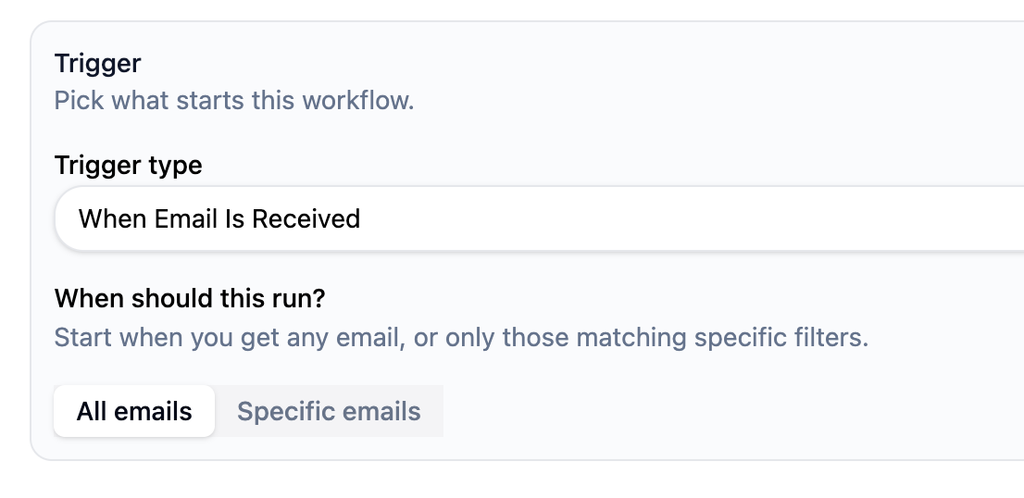
Create a new automation in Actor Studio. Choose When Email Is Received as the starter, so the workflow runs for each new message.
2. Ask AI whether the email is promotional
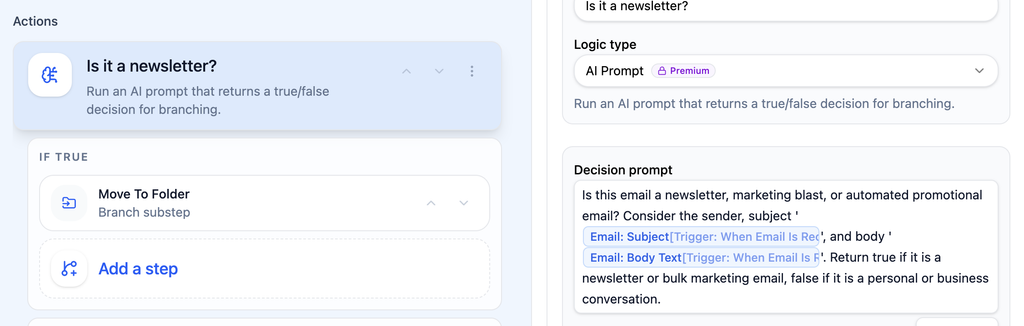
Add an AI Prompt logic step and name it Is it a newsletter? In the decision prompt, insert the email Subject and Body Text fields from the trigger. You can use this wording:
Is this email a newsletter, marketing blast, or automated promotional email? Consider the sender, subject, and body. Return true if it is a newsletter or bulk marketing email. Return false if it is a personal or business conversation.
The step returns true or false, which gives the workflow two paths.
3. Move matching emails
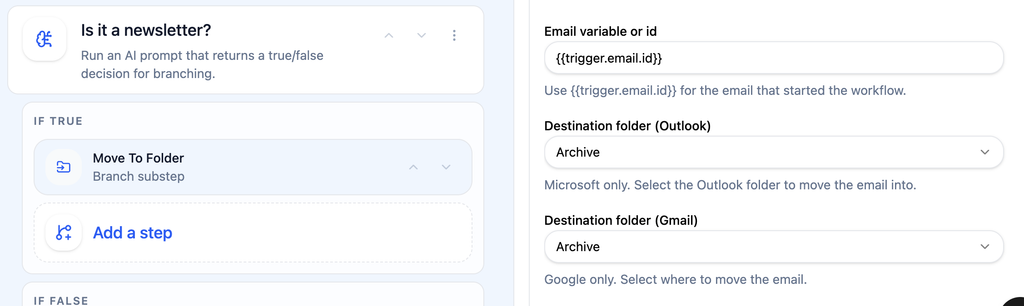
Under If True, add Move To Folder and choose the folder where you want newsletters to go. Leave If False empty if you want other emails to stay where they are.
4. Validate and enable
Validate the automation, save it, and switch it from Draft to an active status when you are ready. Try it with a newsletter and a normal conversation to make sure each takes the expected path.
That is the whole flow: new email → AI decision → move the newsletter.