
Claude for Outlook: How to use it in 2026?
Email is still the center of actual work: where decisions get made, deadlines are set, approvals happen, and conversations turn into action.
Updated with demo video in February 2026
For most professionals, Outlook is the workspace. That’s why “Claude for Outlook” is starting to mean something very specific:
- draft emails instantly
- break down long, messy threads into clear summaries
- coordinate meetings without endless replies
- extract tasks and next steps from conversations
If you go to Microsoft Appsource for Outlook you’ll find many solutions that are about adding AI capabilities to Outlook.
Let’s break down how you can actually bring AI into Outlook today.
If you care about emails, calendar, and tasks working together, there are really two strong options right now: Copilot and ActorDo.
Microsoft Copilot is Microsoft’s built-in answer. It’s deeply integrated into Outlook and the rest of the Microsoft stack, so it’s the most “native” experience you can get.
Then there’s ActorDo – built specifically for people who spend their day inside Outlook. It focuses more on execution: handling emails, extracting tasks, and actually moving work forward.
We’ll also look at Copilot, various AppSource add-ins that plug into models like Claude, and some lightweight automation setups you can run with minimal effort.
If you go into AppSource and search for “ChatGPT” (or similar AI tools), you’ll find a surprisingly crowded space. There are dozens of small apps and integrations, some already with tens of thousands of users.
However if you want to search Appsource for Chatgpt you’ll end up with tens of mini apps or solutions, some of them already used by tens of thousands of users.
At the time of writing, a simple search returns around 9 results just in the Outlook category. Most of them are narrow tools, each solving one small piece of the workflow.

ActorDO AI Assistant for Outlook
What it is
Actor is an Outlook add-in that runs directly inside Outlook Web and the Outlook desktop app (Windows and Mac). It sits in the sidebar next to your inbox, so you don’t have to jump to another tab or tool.
What it’s actually designed for
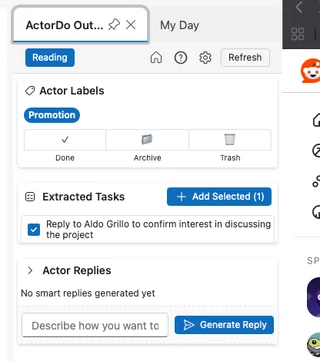
Inbox cleanup that makes decisions
Instead of just reading emails, Claude helps you act on them—archive what’s done, remove noise, and keep only what still requires attention.
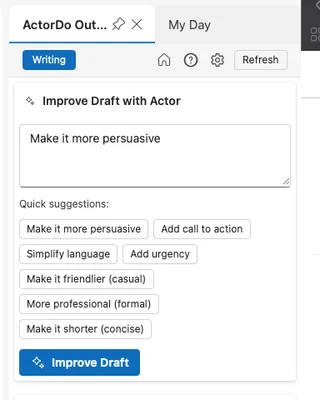
Replying without overthinking
Whether you’re starting from scratch or refining a draft, Claude can generate or improve replies based on the full thread. You guide it, it adjusts tone, clarity, and intent.
Turning emails into action
Claude can spot tasks hidden in conversations and surface them as clear next steps, so things don’t get lost in “I’ll handle this later.”
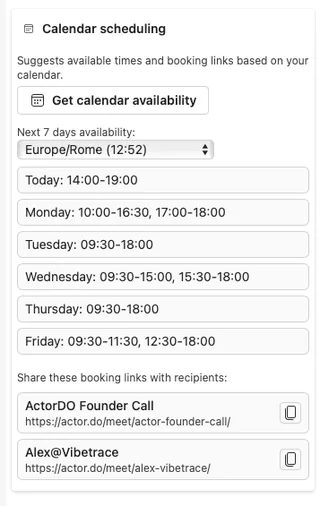
Scheduling without friction
Quickly share availability or insert booking options directly into replies. No switching tabs, no back-and-forth—just faster coordination.
Email as part of your workflow, not a backlog
The idea isn’t just to manage your inbox better, but to treat it as one piece of your daily plan—where emails connect directly to tasks, time, and priorities.
Where Actor stands out
- Actor doesn’t see email, calendar, and tasks as separate tools. It connects them into one flow—so an email can become a task, a task can block time, and everything stays aligned.
- It’s not built for chatting back and forth with AI all day. The goal is simple: process your inbox fast, take action, and get on with your work.
- And you can get started for free. There are limits, but the core experience is available without paying, and you can keep using it that way long-term.
Where Actor isn’t trying to win (yet)
There are areas where other tools—especially enterprise ones—still go deeper.
Company-wide search across documents
Full semantic search across SharePoint or OneDrive isn’t the focus here. Actor stays closer to your daily workflow rather than indexing your entire company knowledge base.
Admin-level or system-wide automation
Things like setting global Outlook rules or configuring out-of-office replies at a specific time are better handled by native tools like Microsoft Copilot, especially in enterprise setups.
Meeting notes and transcription
There are already strong, specialized tools for meeting notes, recordings, and summaries—and they do a solid job. Actor doesn’t try to replace them.
Actor is a great fit if:
You spend most of your day in Outlook, handling emails, coordinating meetings and constantly juggling follow-ups.
Instead of another tool to manage, you want something that feels like a real assistant next to you:
“Here’s a clean reply.”
“I pulled out the tasks for you.”
“These are your available time slots—just send them.”
Microsoft Copilot in Outlook
If you’re on Microsoft 365 with Copilot enabled, Outlook already ships with AI built in. Copilot shows up directly in Outlook’s reading pane and compose window.
What Microsoft Copilot actually does inside Outlook
Condense long email threads
Instead of reading 30+ replies, you can generate a quick summary with key decisions, open questions, and references back to specific emails.
Write emails from simple prompts
You can give a short instruction like “follow up on the contract and confirm Monday start,” and Copilot turns it into a full draft you can tweak.
Improve tone and clarity
Already wrote something? Copilot can rewrite it to sound more professional, shorter, or friendlier—and flag if the message feels unclear or too direct.
Surface what matters in your inbox
It helps you cut through noise by highlighting important emails and pulling out action items, so you don’t waste time figuring out what’s actually required from you.
Help with scheduling and meeting prep
You can create meetings, generate agenda ideas, and even get suggested time slots. Microsoft is pushing this further with “Copilot Actions”—automations for common Outlook tasks like planning meetings or structuring conversations.

Where Microsoft Copilot really stands out
Built directly into Outlook
No switching tools, no copy-paste. It’s already there across Outlook (web, Windows, Mac), so the experience feels seamless.
Strong on security and compliance
Copilot works on top of your Microsoft 365 data—emails, calendar, files—within your organization’s environment. For many companies, that trust layer matters more than anything else.
Centralized control for IT
Admins can manage access, permissions, and rollout across the company. That makes it much easier to adopt at scale compared to external tools.
Cost
Copilot for Microsoft 365 is a licensed add-on. For business/enterprise plans, Microsoft positions Copilot at about $30 USD per user per month.
Copilot is ideal if:
Your company is already deep in Microsoft 365, security/compliance is non-negotiable, and you want AI that can see your emails, calendar, and files without leaving Microsoft’s world.
Better go with ActorDo. We also launched Actor Studio to help with automations
To sum up these things.
- ActorDo wants to become your best AI Assistant for daily work with emails, calendar and tasks.
- Copilot is very good, but not providing the same configuration and personalization as Actor
- All other Add-ins are also very good on very specific tasks they provide.
Final thoughts
There isn’t a single “Claude for Outlook.” What you actually have are a few different approaches:
ActorDo
A focused side panel that connects inbox, calendar, and tasks into one flow. Built for people who live in email and just want things handled quickly.
Microsoft Copilot for Outlook
Deeply embedded into the Microsoft ecosystem. Strong at drafting, summarizing, scheduling—and expanding fast with more automation capabilities.
Marketplace add-ins (“Claude for Outlook”)
Lightweight tools you can install directly from AppSource. Usually focused on writing and summarizing, sometimes powered by your own API setup.
DIY automations
If you want full control, you can wire Outlook to an LLM yourself using automation tools—handling things like auto-drafts, summaries, or tagging based on your own logic.