
How to automate your Outlook. Final guide to save 3.5 hours per week
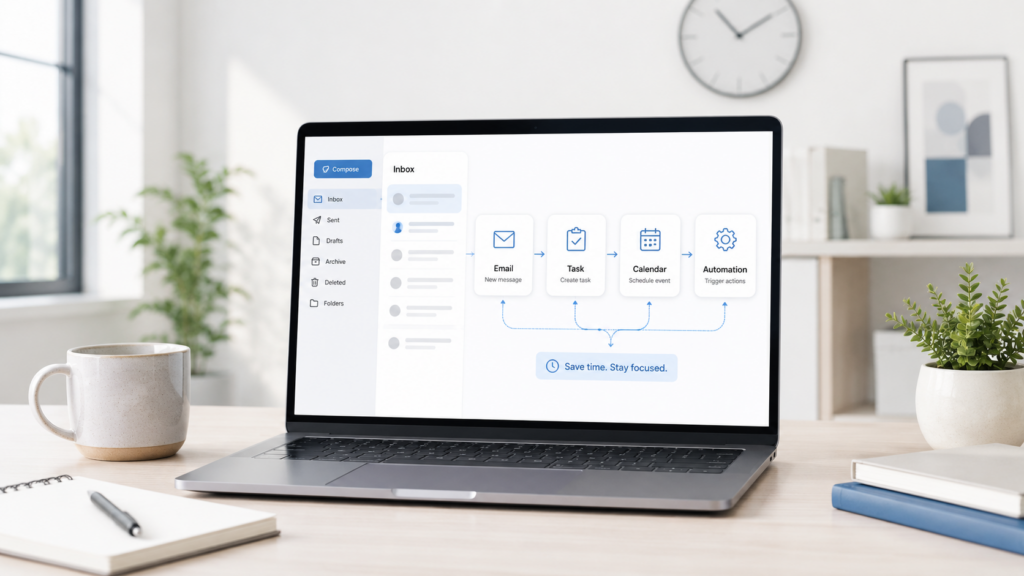
Most people do not lose time in Outlook because they write one long email. They lose time because they repeat small actions all day.
They check the inbox. They open emails to decide if something matters. They move messages to folders. They write similar replies. They forget to follow up. They copy details into tasks. They search old conversations before meetings. They try to remember what was promised last week.
If you don’t have a free account with ActorDo, create it now.
Each action looks small, but together, they become hours every week.
The good news is that Outlook can be automated. But the real value does not come only from simple rules like “move this sender to this folder”. That helps, but it is only the beginning.
The real value comes when Outlook becomes connected with your tasks, calendar, reminders, follow-ups, and AI workflows.
This guide shows how to automate Outlook in a practical way, with concrete examples. I will also show how the same workflows can be built with ActorDo, using Studio and the connected apps around Outlook.
The goal is simple: save around 3.5 hours every week without losing control of your work.
Why Outlook automation matters
Outlook is where work starts for many people. The inbox is not only a place for messages, but a work queue.
A customer asks for something. A supplier sends an invoice. A colleague shares a document. A lead replies. A meeting gets updated. A manager asks for a report. A client confirms a decision.
The problem is that Outlook was not designed as a full work operating system. It has email, calendar, tasks, rules, categories, and search. But most workflows still require manual decisions.
For example:
- Is this email important?
- Should I reply now or later?
- Do I need to create a task?
- Should this be forwarded?
- Does this need a calendar event?
- Is this related to a customer?
- Is this a meeting I need to prepare for?
- Did I promise to follow up?
Simple Outlook rules cannot answer these questions well.
AI automation can.
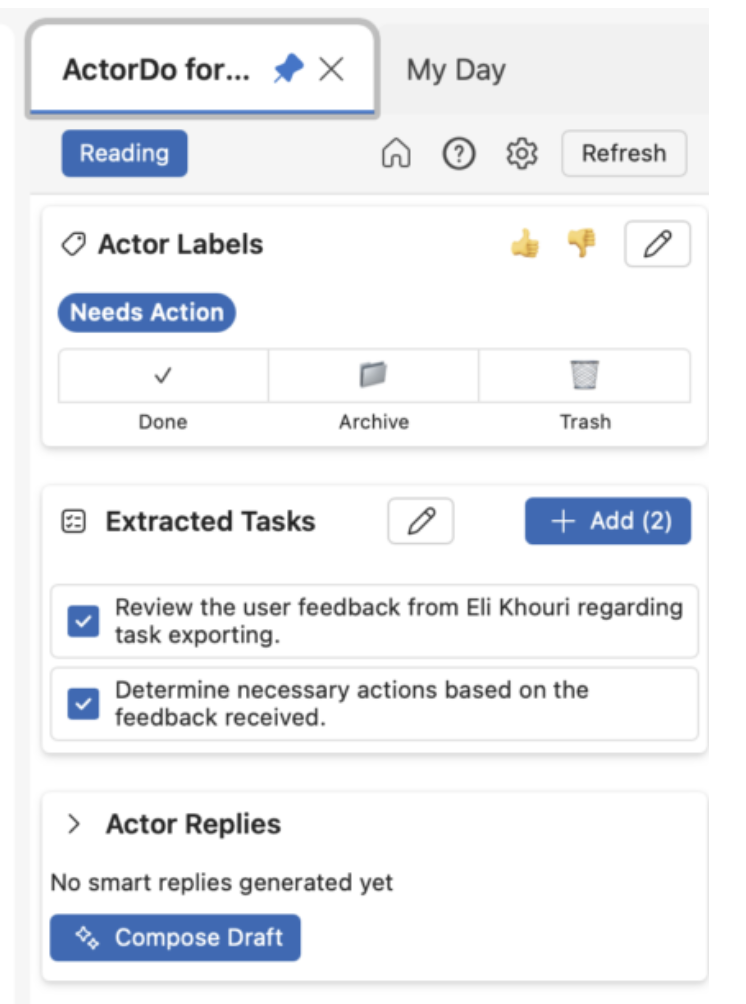
This is where a tool like ActorDo becomes useful. Instead of only matching sender or subject, ActorDo can understand the email content, classify the intent, create a task, draft a reply, prepare a summary, or trigger a follow-up workflow. And together with our Outlook Add-in this can be quickly achieved.
What you can automate in Outlook
You can automate more than most people think.
The useful Outlook automations usually fall into these categories:
- Inbox organization
- Email classification
- Reply drafting
- Follow-up reminders
- Task creation
- Calendar preparation
- Meeting summaries
- Customer or lead tracking
- Team visibility
- Newsletter cleanup
- Daily planning
- Escalation rules
- Repetitive internal updates
- Personal productivity workflows
The key is not to automate everything from day one. The best approach is to automate the actions you repeat every week.
Start with anything that has a clear pattern:
- Emails from specific senders
- Emails with common requests
- Emails that require a reply
- Emails that require a follow-up
- Emails that should become tasks
- Emails that are useful but not urgent
- Emails that are noise
- Emails related to meetings
This is also safer. You do not want an AI system making large decisions without control. You want small automations that help you move faster.
The 3.5 hour saving model
Saving 3.5 hours per week is realistic if you automate the right things.
Email sorting saves 60 minutes per week
Most people manually scan their inbox many times per day. They decide what is important, what can wait, what is noise, and what belongs in a folder.
Automation can classify messages, apply labels, move low-value emails, and highlight important ones.
Reply drafting saves 45 minutes per week
You probably write many similar replies.
Examples:
- “Thanks, I will check and come back to you”
- “Can you send me more details?”
- “I confirm this”
- “Let’s schedule a call”
- “I forwarded this internally”
- “This is not relevant for us right now”
AI can draft these replies based on the email context. You still review and send.
Follow-up reminders save 30 minutes per week
Follow-ups are one of the easiest things to forget.
Automation can detect when an email needs a follow-up and create a reminder automatically.
Email to task automation saves 30 minutes per week
Many emails are actually tasks.
Instead of copying the subject, sender, deadline, and context manually, automation can create the task directly.
Meeting preparation saves 30 minutes per week
Before meetings, people search emails, old replies, attachments, and notes.
Automation can prepare a short meeting context based on recent emails and calendar events.
Daily planning saves 30 minutes per week
A daily digest can show important emails, meetings, pending tasks, and follow-ups in one place.
This avoids multiple inbox checks in the morning.
Noise cleanup saves 25 minutes per week
Newsletters, system notifications, low-priority updates, and automated messages are useful sometimes, but they should not interrupt your day.
Automation can move them away, summarize them, or include them in a digest.
Together, these small workflows can save around 3.5 hours every week.
Basic Outlook automations you can use today
Before using advanced automation, it makes sense to use the basic features already inside Outlook.
Use rules for predictable emails
Outlook rules are good when the logic is simple.
Examples:
- Move invoices from a specific supplier to a finance folder
- Move newsletters to a reading folder
- Flag emails from your manager
- Forward certain system alerts
- Move calendar responses to a separate folder
Rules work best when the condition is clear.
For example:
- Sender is always the same
- Subject contains the same words
- Email comes from a known system
- Email has a specific recipient
- Email is sent to a shared mailbox
Rules do not work well when the logic depends on meaning.
For example:
- “This email sounds urgent”
- “This customer is unhappy”
- “This needs a follow-up”
- “This contains a task”
- “This should be handled by finance”
- “This is a sales opportunity”
That is where AI automation is better.
Use categories for visual prioritization
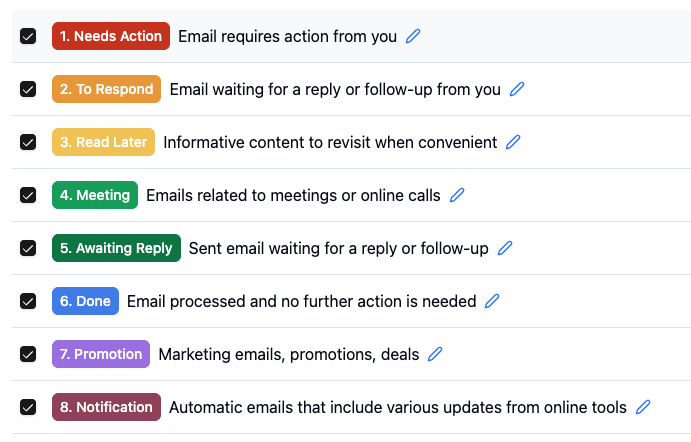
Categories are useful when you want to quickly see what type of work an email belongs to.
Example categories:
- Customer
- Finance
- Sales
- Internal
- Waiting
- Follow-up
- Urgent
- Read later
The problem is that applying categories manually becomes another task. A better setup is to let automation apply categories based on meaning.
For example:
- If email contains an invoice, mark it as Finance
- If email asks for a decision, mark it as Action needed
- If email contains a complaint, mark it as Priority
- If email is a newsletter, mark it as Read later
- If email contains a meeting request, mark it as Calendar
Use email templates for common replies
Outlook templates are useful for repeated replies. But templates are static. They do not adapt to the email.
AI drafts are more useful because they can reuse your tone and include details from the original message.
A good setup is:
- Use templates for very standard replies
- Use AI drafts for contextual replies
- Review before sending
- Save the best replies as examples for future automation
Advanced Outlook automation with ActorDo
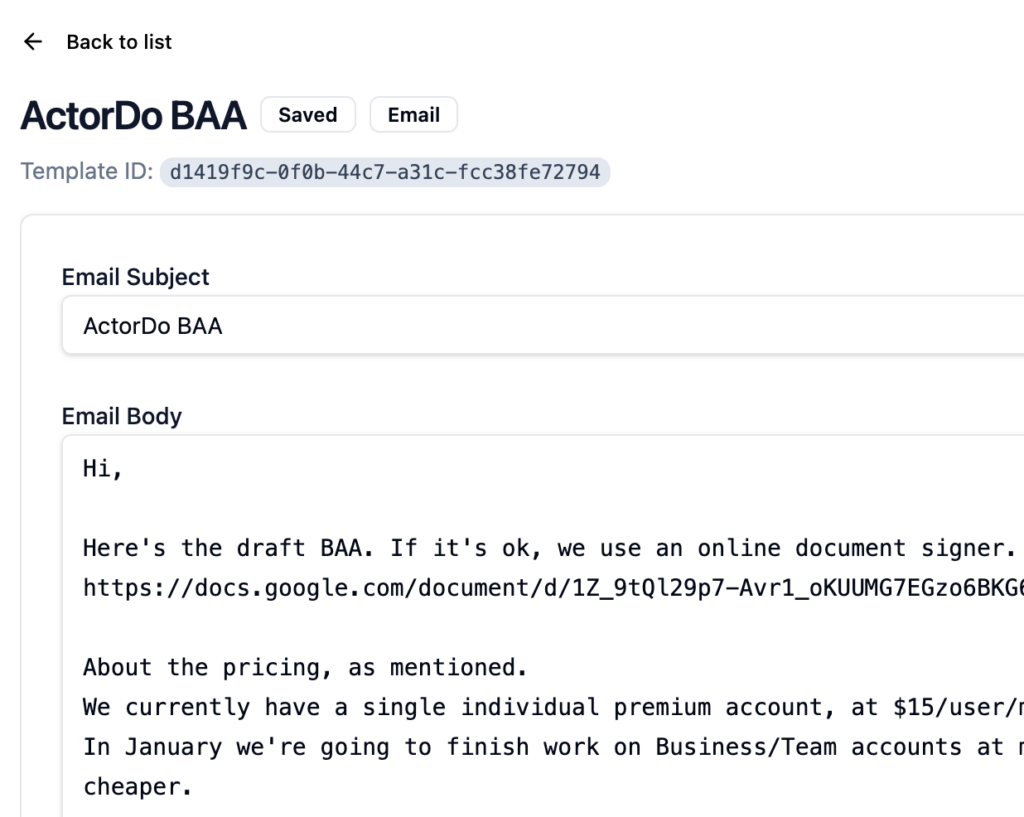
ActorDo is useful when you want Outlook automation that understands context.
Instead of only saying:
“When sender is X, move to folder Y”
You can build workflows like:
“When an email arrives, analyze the message, decide if it needs action, create a task if needed, draft a reply, and notify me only if it is important.”
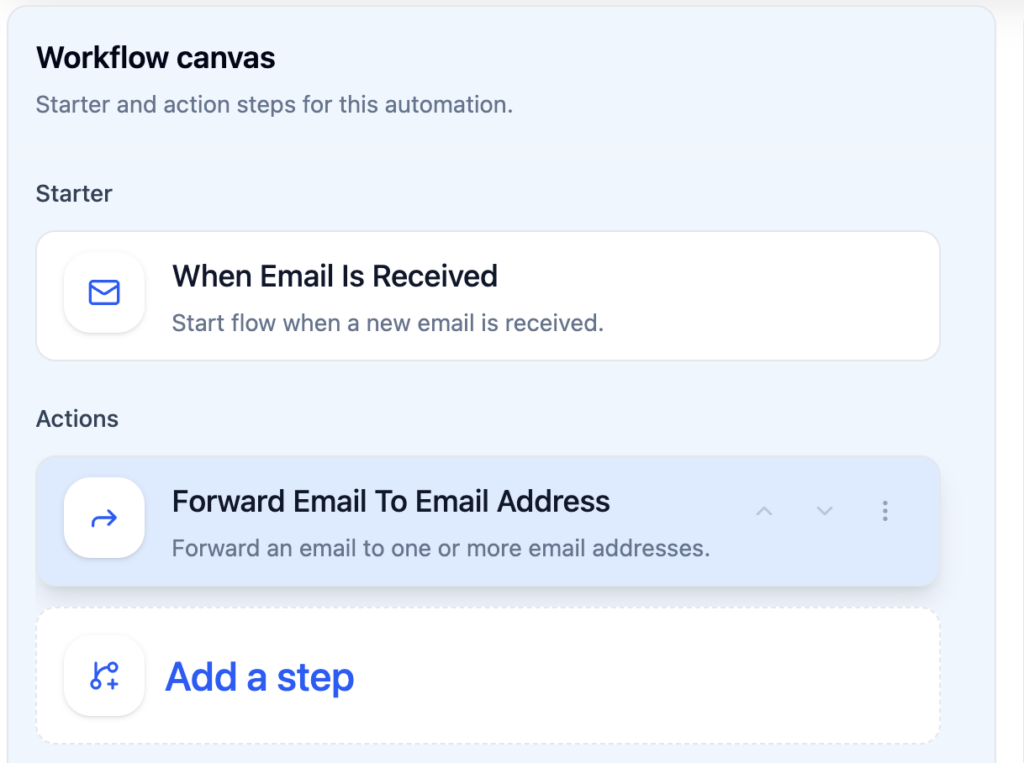
ActorDo can help with:
- Email classification
- AI reply drafts
- Follow-up detection
- Task creation
- Calendar event creation
- Daily digests
- WhatsApp updates
- Workflow simulations
- Step-by-step workflow testing
- Multi-account Outlook and Google workflows
- Team automation logic
- Shared workflow templates
The important part is control, which ActorDo offers it completely, including traceability of what happens with all your automations.
You do not need to let AI send emails automatically from day one. You can start with safe actions:
- Analyze
- Label
- Draft
- Suggest
- Notify
- Create a task
- Prepare a summary
Then, after you trust the workflow, you can decide if some actions should run automatically.
Workflow 1: auto-sort important emails
Most inboxes are full of mixed signals.
A customer email sits next to a newsletter. A supplier invoice sits next to a calendar update. A real opportunity sits next to a software notification.
The first automation should help you separate important emails from noise.
Goal
Classify incoming emails and organize them automatically.
Example logic
When a new Outlook email arrives:
- Read the sender, subject, body, and recipients
- Decide the email type
- Apply a category or move it to a folder
- Mark urgent emails clearly
- Ignore or summarize low-priority emails
Example categories
- Needs reply
- Customer
- Finance
- Internal
- Follow-up
- Waiting
- Newsletter
- Notification
- Meeting related
- Low priority
ActorDo Studio workflow
This is our default email labelling Flow.
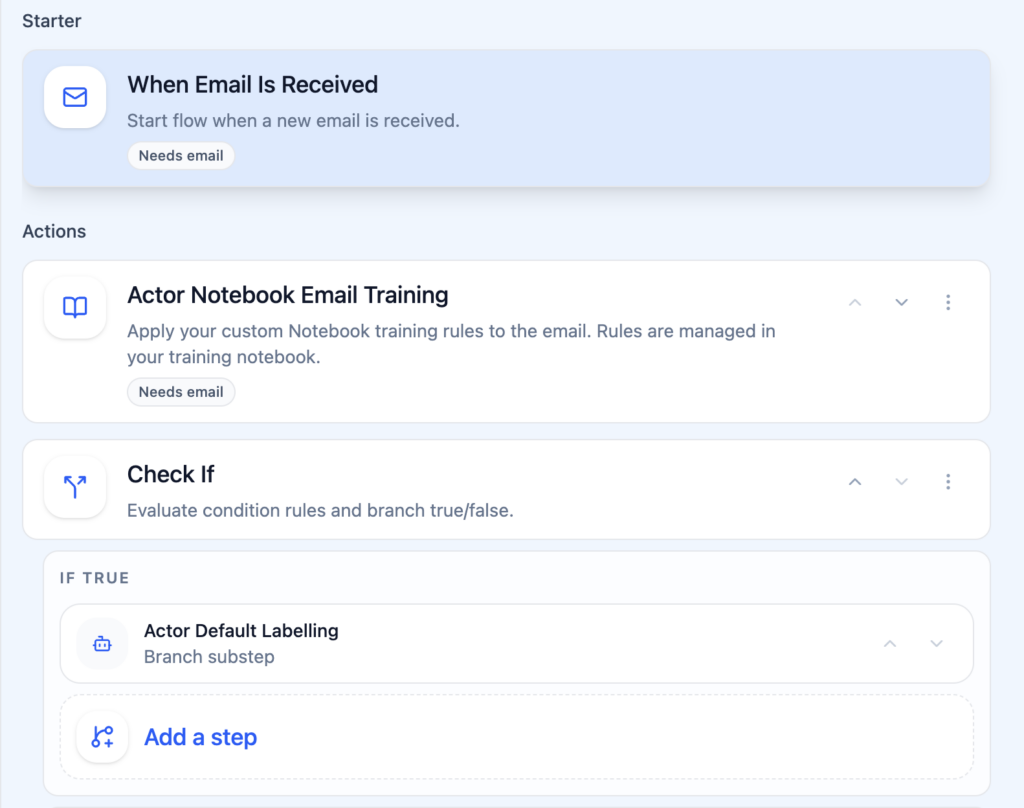
Trigger:
- Email received
AI step:
- Analyze email purpose
- Detect urgency
- Detect if user action is needed
- Detect suggested category
Conditions:
- If email needs reply, apply “Needs reply”
- If email is low priority, move to “Read later”
- If email is finance related, apply “Finance”
- If email is from a customer and urgent, notify the user
Actions:
- Apply label or category
- Move email to folder
- Create task if needed
- Send notification if urgent
Why this saves time
You stop treating all emails equally.
Instead of scanning the full inbox several times per day, you can focus on the emails that matter.
Workflow 2: draft replies automatically
This is one of the most useful Outlook automations.
Many emails do not need deep thinking. They need a clear, polite reply.
Goal
Generate a draft reply for emails that require a response.
Good use cases
- Confirming receipt
- Asking for more information
- Declining politely
- Confirming a meeting
- Sending next steps
- Following up on missing details
- Replying to common customer questions
- Responding to internal requests
ActorDo Studio workflow
Trigger:
- Email received
AI step:
- Decide if the email needs a reply
- Understand what the sender wants
- Draft a reply in your tone
- Keep the reply short and useful
Condition:
- If confidence is high, create draft
- If confidence is low, only summarize the email
- If email is sensitive, do not draft automatically
Action:
- Create Outlook draft
- Add short internal note
- Notify user that a draft is ready
Example draft instruction
“Write a short professional reply. Be clear and helpful. Do not overexplain. If information is missing, ask for it directly. Do not commit to deadlines unless they were already mentioned.”
Why this saves time
You still control the final message, but you do not start from zero.
This is especially useful for people who receive many similar emails.
Workflow 3: create follow-up reminders
Follow-ups are where many opportunities are lost.
You send a proposal. Nobody replies. You forget. Two weeks later, the deal is cold.
Or someone promises to send a document. You forget to check. The project slows down.
Outlook flags help, but they are manual.
AI can detect follow-up situations automatically.
Goal
Create follow-up reminders from emails.
Common follow-up signals
- “I will get back to you”
- “Please send me”
- “Can you confirm”
- “Let me know”
- “Waiting for approval”
- “We should discuss”
- “I will review”
- “Can we decide by Friday”
- “Please update me”
- “I sent the proposal”
ActorDo Studio workflow
Trigger:
- Email sent
- Email received
AI step:
- Detect if a follow-up is needed
- Identify who owns the next step
- Extract deadline if mentioned
- Suggest reminder date
Condition:
- If user is waiting for someone, create follow-up task
- If someone is waiting for user, create task for user
- If no clear action exists, do nothing
Action:
- Create follow-up task
- Add email link
- Add suggested follow-up text
- Notify user on due date
Example reminder
“Follow up with Sarah about the proposal sent on Monday. Suggested message: Just checking if you had a chance to review the proposal. Happy to clarify anything.”
Why this saves time
You do not need to manually track open loops.
The automation watches for them and keeps them visible.
Workflow 4: turn emails into tasks
A lot of inbox stress comes from emails that should not stay in the inbox.
They should become tasks.
Examples:
- Review document
- Approve invoice
- Send contract
- Prepare report
- Call customer
- Check numbers
- Update presentation
- Confirm availability
- Send feedback
- Upload file
Goal
Create tasks automatically when an email contains an action.
ActorDo Studio workflow
Trigger:
- Email received
AI step:
- Detect action items
- Extract deadline
- Identify project or context
- Create task title
- Create task description
- Add email reference
Condition:
- If action is assigned to user, create task
- If action is assigned to someone else, do not create task
- If deadline exists, use it
- If deadline does not exist, assign a default review date
Action:
- Create task
- Link task to email
- Add category
- Notify user if urgent
Example task output
Title:
“Review supplier contract”
Description:
“Email from Mark asking for review of the supplier contract before Friday. Check pricing, payment terms, and renewal clause. Original email attached.”
Due date:
Friday
Why this saves time
You stop using your inbox as a task list.
Tasks become structured, searchable, and easier to prioritize.
Workflow 5: prepare meeting context
Meetings often require context from email.
Before a call, you may need to know:
- What was discussed before
- What the customer asked
- What you promised
- What documents were shared
- What blockers exist
- What decisions are pending
This usually means searching Outlook before the meeting.
Automation can prepare this for you.
Goal
Create a short meeting briefing before calendar events.
ActorDo Studio workflow
Trigger:
- Calendar event starting soon
AI step:
- Read event title, attendees, and description
- Search related emails
- Summarize recent conversations
- List open action items
- Suggest talking points
Condition:
- If meeting has external attendees, prepare briefing
- If meeting is internal and recurring, prepare only if recent emails exist
- If no context exists, do nothing
Action:
- Create meeting summary
- Send it by email, dashboard, or WhatsApp
- Include relevant email links
- Include open tasks
Example meeting briefing
Meeting:
“Call with ACME”
Context:
- ACME asked for pricing details last week
- You sent the proposal on Tuesday
- They asked about onboarding time
- No reply yet on contract terms
Suggested talking points:
- Confirm onboarding timeline
- Ask if pricing is clear
- Check who needs to approve internally
- Agree next step and follow-up date
Why this saves time
You enter meetings prepared without manually searching through emails.
Workflow 6: create a daily Outlook digest
A daily digest is one of the highest-value automations.
Instead of starting the day by opening Outlook and reacting to everything, you start with a clear summary.
Goal
Receive one daily overview of important emails, meetings, tasks, and follow-ups.
Digest content
- Today’s meetings
- Important unread emails
- Emails waiting for reply
- Follow-ups due today
- Tasks created from email
- Conflicts in calendar
- Suggested focus blocks
- Low-priority summary
ActorDo Studio workflow
Trigger:
- Schedule recurring every weekday morning
Steps:
- Fetch today’s calendar events
- Fetch unread important emails
- Fetch open follow-up tasks
- Detect meeting conflicts
- Suggest focus time
- Generate summary
Action:
- Send digest to email
- Show digest in dashboard
- Send digest to WhatsApp
- Optionally generate audio summary
Example daily digest
Today you have 5 meetings, with one conflict at 14:00.
Important emails:
- Customer reply from ACME about proposal
- Invoice approval request from finance
- Internal request from Anna about Q2 report
Follow-ups:
- Follow up with Daniel about contract review
- Check if onboarding document was approved
Suggested focus time:
- 09:30 to 10:15
- 15:30 to 16:30
Why this saves time
You reduce random inbox checking.
You start with priorities, not noise.
Workflow 7: automate team email visibility
Many teams work from Outlook, but managers do not see what is happening until someone reports it.
This creates hidden problems.
Examples:
- Customer emails are waiting too long
- Leads are not followed up
- Invoices are delayed
- Internal requests are stuck
- Complaints are not escalated
- Team members forget promised actions
Automation can create visibility without micromanagement.
Goal
Create insights from team email activity.
Useful team insights
- Number of important emails received
- Number of emails waiting for reply
- Customers with no response after 48 hours
- Open follow-ups
- Urgent emails detected
- Email volume by customer
- Common topics
- Delayed replies
- Missed opportunities
- Workload by person or mailbox
ActorDo workflow
Trigger:
- Schedule daily or weekly
Steps:
- Analyze selected Outlook mailboxes
- Detect emails needing action
- Group by customer, topic, or owner
- Detect unresolved threads
- Generate report
Action:
- Send report to manager
- Create dashboard item
- Create tasks for unresolved items
- Notify owner only when action is needed
Example output
Team email report:
- 12 customer emails still need reply
- 3 leads have no follow-up after proposal
- 2 complaints should be reviewed today
- Finance has 5 invoice approval requests pending
- Most common topic this week: onboarding questions
Why this saves time
Managers do not need to ask for updates manually.
The system surfaces what needs attention.
Workflow 8: clean newsletters and low-value emails
Newsletters are not always bad.
Some are useful. The problem is that they arrive during work and compete with important emails.
The best solution is not to unsubscribe from everything. It is to move low-priority content into a separate flow.
Goal
Keep newsletters and automated notifications out of the main inbox.
ActorDo Studio workflow
Trigger:
- Email received
AI step:
- Detect if email is newsletter, notification, alert, or personal message
- Decide if it is useful or low priority
- Extract short summary if useful
Condition:
- If newsletter, move to Read later
- If system notification and low priority, archive or move
- If notification contains error or urgent alert, mark important
- If newsletter is from selected source, include in weekly digest
Action:
- Move email to folder
- Apply category
- Add to digest
- Notify only if urgent
Example folders
- Read later
- Newsletters
- System notifications
- Product updates
- Reports
- Low priority
Why this saves time
Your inbox becomes a work inbox again.
You can still read useful content, but on your schedule.
Workflow 9: automate customer or lead follow-ups
Sales and customer communication are perfect for Outlook automation.
Most follow-up work follows patterns.
Examples:
- Lead replied but no meeting booked
- Proposal sent but no answer
- Trial user asked a question
- Customer mentioned a problem
- Contract was sent
- Demo was completed
- Renewal is coming
- Customer asked for pricing
Goal
Detect sales or customer opportunities and create next actions.
ActorDo Studio workflow
Trigger:
- Email received
- Email sent
AI step:
- Detect if email is related to a lead or customer
- Identify stage
- Detect next step
- Suggest follow-up date
- Draft follow-up message
Condition:
- If proposal was sent, create follow-up in 3 business days
- If lead asks for pricing, create high-priority task
- If customer complains, notify owner
- If customer confirms interest, draft meeting reply
Action:
- Create task
- Draft reply
- Apply customer category
- Notify sales owner
- Add to daily digest
Example follow-up workflow
Email sent:
“Proposal for ActorDo business plan”
Automation:
- Detect proposal sent
- Create follow-up task for 3 business days later
- Draft short follow-up
- Add customer name and email link
- Include in daily digest until completed
Why this saves time
You stop relying on memory.
Every opportunity gets a next step.
Workflow 10: protect focus time
Outlook is not only email. Calendar automation matters too.
A full calendar can destroy productivity, even if every meeting looks reasonable.
Automation can help protect focus time.
Goal
Find free time and block it for focused work.
ActorDo workflow
Trigger:
- Schedule recurring every weekday
- Or calendar updated
Steps:
- Check calendar availability
- Detect open time blocks
- Detect overloaded days
- Suggest focus blocks
- Optionally create calendar blocks
Condition:
- If day has more than 4 meetings, suggest focus time
- If there is a free block longer than 60 minutes, recommend it
- If urgent tasks exist, reserve time
- If calendar conflict exists, notify user
Action:
- Create focus time block
- Send recommendation
- Add task context
- Notify user about conflicts
Example output
“You have meetings from 10:00 to 14:30. The best focus block is 15:00 to 16:30. Suggested use: prepare customer proposal and review pending finance emails.”
Why this saves time
You do not only manage messages. You protect the time needed to act on them.
How to build safe Outlook automations
The best automation is not the one that does everything.
The best automation is the one you trust.
Start with low-risk actions.
Safe actions to automate first
- Categorize emails
- Move newsletters
- Create drafts
- Create tasks
- Create follow-up reminders
- Prepare summaries
- Generate daily digests
- Detect urgent emails
- Suggest focus time
- Notify you about open loops
Actions to review before full automation
- Sending emails
- Forwarding sensitive messages
- Deleting emails
- Moving customer emails out of inbox
- Creating external calendar invites
- Sharing reports with a team
- Escalating complaints
- Replying to legal, finance, or HR topics
Use confidence levels
A good automation should not treat all cases the same.
Example logic:
- If confidence is high, create draft
- If confidence is medium, summarize and ask user
- If confidence is low, do nothing
- If email is sensitive, require review
- If sender is VIP, notify user
This gives you speed without chaos.
What not to automate
Not every Outlook task should be automated.
Some work needs judgment.
Avoid full automation for:
- Sensitive customer complaints
- Legal discussions
- HR messages
- Contract negotiations
- Financial approvals
- Executive communication
- Emotional or conflict-heavy messages
- Messages where tone matters a lot
- Emails with unclear context
- Anything that can create reputational risk
For these cases, automation should assist, not decide.
Good examples:
- Summarize the email
- Draft a careful reply
- Suggest next steps
- Create a task
- Remind you to respond
- Prepare background context
Bad examples:
- Auto-send a sensitive reply
- Auto-approve something
- Auto-forward private information
- Auto-delete messages
- Auto-escalate without review
Recommended first setup
If you want to automate Outlook properly, start with a simple setup.
Do not build 20 workflows from day one.
Start with 5.
Workflow 1: classify incoming emails
Purpose:
Keep the inbox organized.
Actions:
- Detect email type
- Apply category
- Move low-priority emails
- Mark important emails
Workflow 2: draft replies
Purpose:
Reduce writing time.
Actions:
- Detect emails needing reply
- Create draft
- Add short context note
- Leave final sending to user
Workflow 3: create follow-up reminders
Purpose:
Avoid forgotten promises and missed opportunities.
Actions:
- Detect follow-up need
- Create task
- Suggest date
- Include email reference
Workflow 4: create daily digest
Purpose:
Start the day with a plan.
Actions:
- Summarize calendar
- Summarize important emails
- Show follow-ups
- Suggest focus time
Workflow 5: prepare meetings
Purpose:
Enter meetings with context.
Actions:
- Check calendar
- Find related emails
- Summarize open topics
- Suggest talking points
These 5 workflows are enough to create visible value.
After that, add more specific automations for your role.
Outlook automation examples by role
Different people use Outlook differently.
The best automation depends on the job.
For founders
Useful automations:
- Detect investor emails
- Draft replies to partnership requests
- Track customer follow-ups
- Summarize important team emails
- Prepare meetings with leads
- Create tasks from operational emails
- Protect focus time
For sales teams
Useful automations:
- Follow up after proposals
- Detect buying signals
- Draft replies to leads
- Track unanswered emails
- Create CRM-like notes from threads
- Notify when a hot lead replies
- Summarize account activity
For customer support
Useful automations:
- Detect complaints
- Classify customer questions
- Draft first replies
- Escalate urgent issues
- Create support tasks
- Track unresolved threads
- Summarize recurring problems
For finance teams
Useful automations:
- Detect invoices
- Move supplier emails
- Create approval tasks
- Track payment questions
- Summarize finance requests
- Remind about missing documents
- Prepare weekly finance email report
For managers
Useful automations:
- Summarize team emails
- Detect blocked projects
- Track unanswered external emails
- Prepare meeting context
- Create tasks from requests
- Monitor high-priority customers
- Send weekly activity reports
For consultants
Useful automations:
- Organize emails by client
- Prepare client meeting notes
- Draft follow-ups
- Track promised deliverables
- Create tasks from client requests
- Summarize project threads
- Detect urgent client issues
How ActorDo Studio fits into Outlook automation
ActorDo Studio is where you build the automation logic.
A workflow usually has four parts.
Trigger
The event that starts the automation.
Examples:
- Email received
- Email sent
- Calendar event starting
- Recurring schedule
- Manual run
- New booking
- Task created
AI step
The part where the system understands the context.
Examples:
- Classify email
- Detect urgency
- Extract action items
- Identify follow-up need
- Draft reply
- Summarize thread
- Find meeting context
- Decide next best action
Condition
The rule that decides what happens next.
Examples:
- If email needs reply
- If email is urgent
- If sender is customer
- If confidence is high
- If follow-up date exists
- If email is low priority
- If meeting has external attendees
Action
The actual work done by the system.
Examples:
- Create draft
- Create task
- Move email
- Apply label
- Send WhatsApp message
- Create calendar event
- Generate digest
- Notify user
- Forward email
- Update email status
This structure makes automation understandable.
You can see what starts the workflow, what the AI decides, what conditions are checked, and what action is taken.
Add Travel Time to Calendar events
If you are every day on the run, between meetings, locations and customers, you really need this automation.
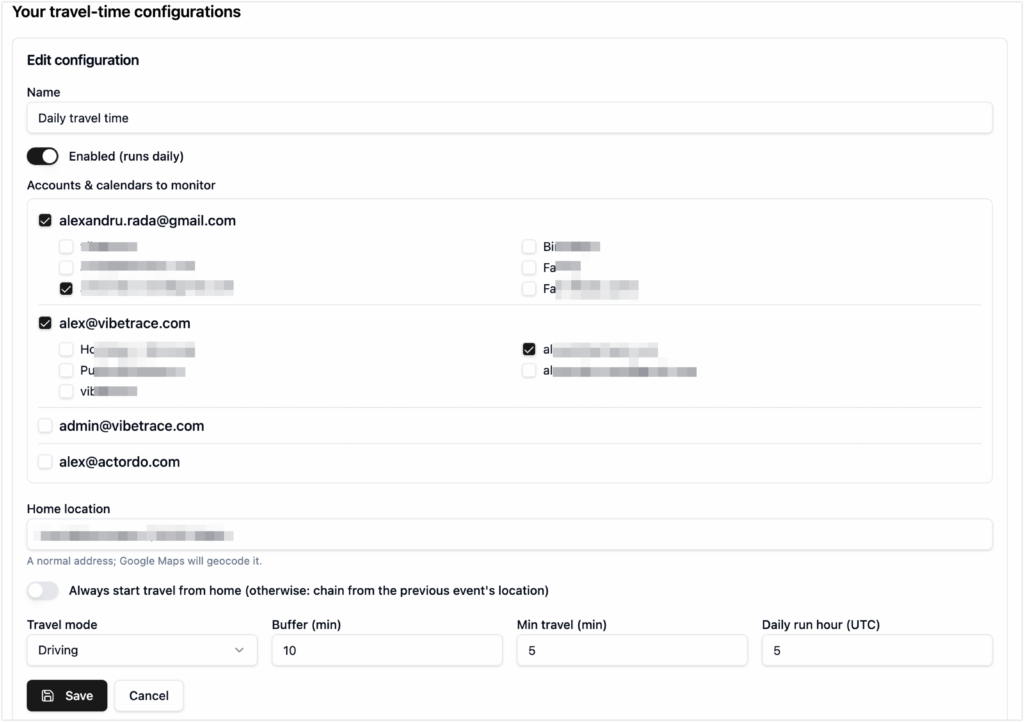
Add Travel Time to Calendar Events
This is a custom app that creates travel time events before the event. It helps you organize better, regardless if you go by public transport, auto or walking.
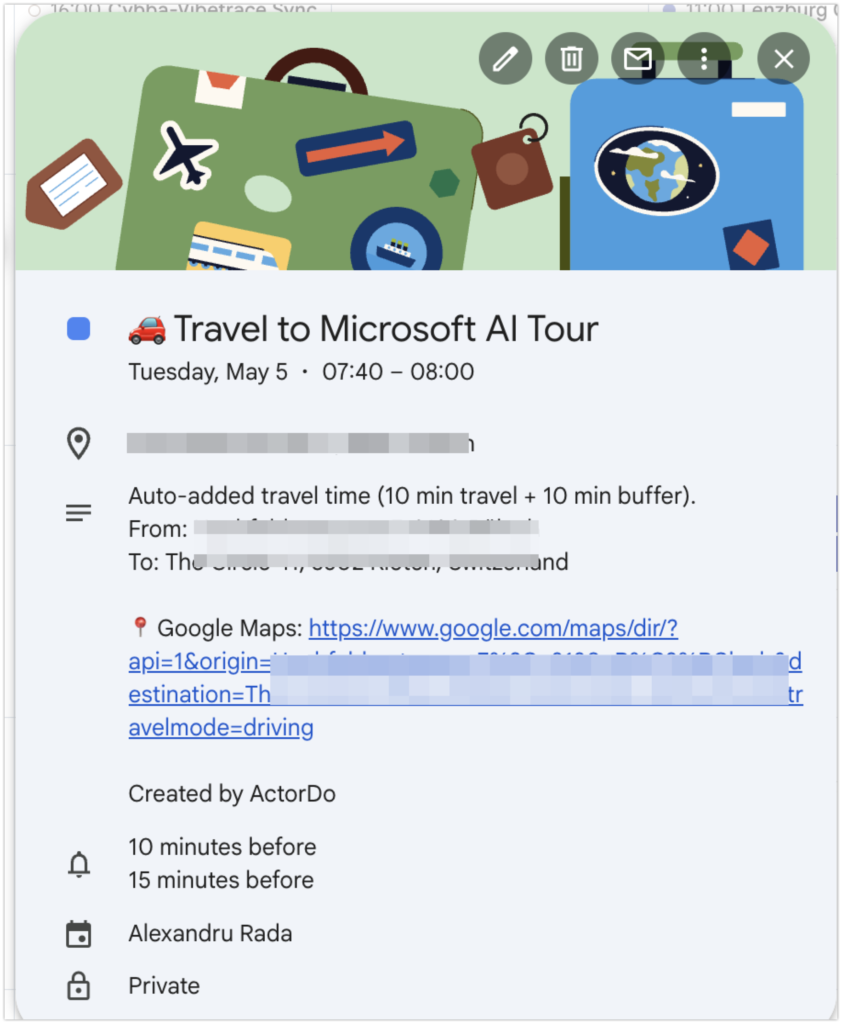
Result
You get those really useful calendar events added before your main event.
How to measure if Outlook automation works
Automation should be measured.
Otherwise, you only feel busy in a different way.
Track these numbers weekly:
- Emails automatically classified
- Drafts created
- Tasks created from emails
- Follow-ups created
- Emails moved out of inbox
- Important emails detected
- Meeting summaries generated
- Manual actions avoided
- Time spent in inbox
- Missed follow-ups
A simple way to estimate time saved:
- Each classified email saves 10 to 20 seconds
- Each draft saves 2 to 5 minutes
- Each automatic task saves 1 to 3 minutes
- Each follow-up reminder saves 2 to 5 minutes
- Each meeting summary saves 5 to 10 minutes
- Each daily digest saves 5 to 15 minutes
You do not need perfect tracking.
You only need to see if the automation is removing repetitive work.
Common mistakes when automating Outlook
Mistake 1: automating too much too early
Start small.
Automate one workflow. Test it. Improve it. Then add another.
Mistake 2: using only sender-based rules
Sender rules are useful, but limited.
Modern work needs context-based automation.
Mistake 3: auto-sending too soon
Draft first. Send later.
This builds trust and avoids mistakes.
Mistake 4: creating too many folders
Too many folders create another system to maintain.
Use folders for clear flows and categories for flexible classification.
Mistake 5: not reviewing automation results
Check what the workflow did.
Good automation should be visible and adjustable.
Mistake 6: ignoring calendar and tasks
Outlook automation is not only about email.
The real value comes when email, calendar, and tasks work together.
A practical 7 day setup plan
You can set up useful Outlook automation in one week.
Day 1: map your repetitive Outlook work
Write down the actions you repeat daily.
Examples:
- Move newsletters
- Reply to simple emails
- Create tasks from requests
- Follow up with people
- Search emails before meetings
- Check calendar conflicts
- Review unread emails every morning
Pick the top 5.
Day 2: clean your categories and folders
Create a simple structure.
Suggested categories:
- Needs reply
- Follow-up
- Customer
- Finance
- Internal
- Waiting
- Low priority
Suggested folders:
- Read later
- Newsletters
- Notifications
- Archive
- Waiting
Keep it simple.
Day 3: create email classification workflow
Build the first workflow in ActorDo Studio.
Start with:
- Email received
- Analyze email
- Apply category
- Move low-priority messages
- Notify only for urgent messages
Review results for one day.
Day 4: add draft replies
Create a workflow that drafts replies for common emails.
Do not auto-send.
Use a safe instruction:
“Create a short draft reply. Do not make commitments that are not present in the email. Ask for missing information when needed.”
Day 5: add follow-up reminders
Create a workflow for sent and received emails.
Look for:
- Waiting for reply
- Proposal sent
- Customer promised something
- User promised something
- Deadline mentioned
Create tasks automatically.
Day 6: add daily digest
Create a daily morning digest.
Include:
- Calendar
- Important emails
- Follow-ups
- Tasks
- Conflicts
- Suggested focus time
Send it where you actually read it.
That can be Outlook, ActorDo dashboard, or WhatsApp.
Day 7: review and adjust
Check:
- What worked?
- What was noisy?
- What was missing?
- Which drafts were useful?
- Which tasks were wrong?
- Which categories need changes?
- Which workflow should become more automatic?
Improve the workflows.
Then keep adding only what saves real time.
Final setup: the 3.5 hour Outlook automation system
Here is the final system you should aim for.
Inbox automation
- Classify emails
- Move low-priority messages
- Highlight urgent emails
- Group newsletters
- Detect customer messages
Reply automation
- Draft common replies
- Ask for missing details
- Suggest polite follow-ups
- Keep sensitive replies for review
Task automation
- Extract action items
- Create tasks
- Add deadlines
- Link original emails
- Add tasks to daily digest
Follow-up automation
- Track sent emails
- Detect waiting status
- Create reminder dates
- Draft follow-up messages
- Escalate overdue items
Calendar automation
- Prepare meeting context
- Detect conflicts
- Suggest focus blocks
- Connect emails with events
- Send meeting briefings
Planning automation
- Send daily digest
- Summarize unread emails
- Show open tasks
- Show follow-ups
- Recommend priority actions
This is how Outlook becomes less reactive.
You no longer start every day by digging through messages.
You start with a clear plan.
Conclusion
Outlook automation is not about replacing your judgment. It is about removing repetitive work around it.
You still decide what matters. You still approve sensitive replies. You still own the relationship with customers, colleagues, suppliers, and partners.
But you should not manually sort every email. You should not write the same reply again and again. You should not forget follow-ups. You should not search old threads before every meeting. You should not use your inbox as a messy task list.
Start with simple automations.
Classify emails. Draft replies. Create follow-ups. Turn emails into tasks. Prepare meeting context. Build a daily digest.
That alone can save around 3.5 hours per week.
And more importantly, it gives you back attention.
ActorDo helps make this practical for Outlook users because it connects email, calendar, tasks, AI decisions, and workflow automation in one place.
The best Outlook automation is not the one that runs everything without you.
It is the one that quietly prepares the next step, keeps your work organized, and lets you focus on the decisions that actually need you.