How to disconnect any app from your Google account
When you connect Actor, or any other third-party app, to your Google account, you give that app permission to access specific Google services, such as Gmail, Google Calendar, Google Drive, or your basic profile.
You can remove that access anytime from your Google account settings.
How to remove app access from a Google account
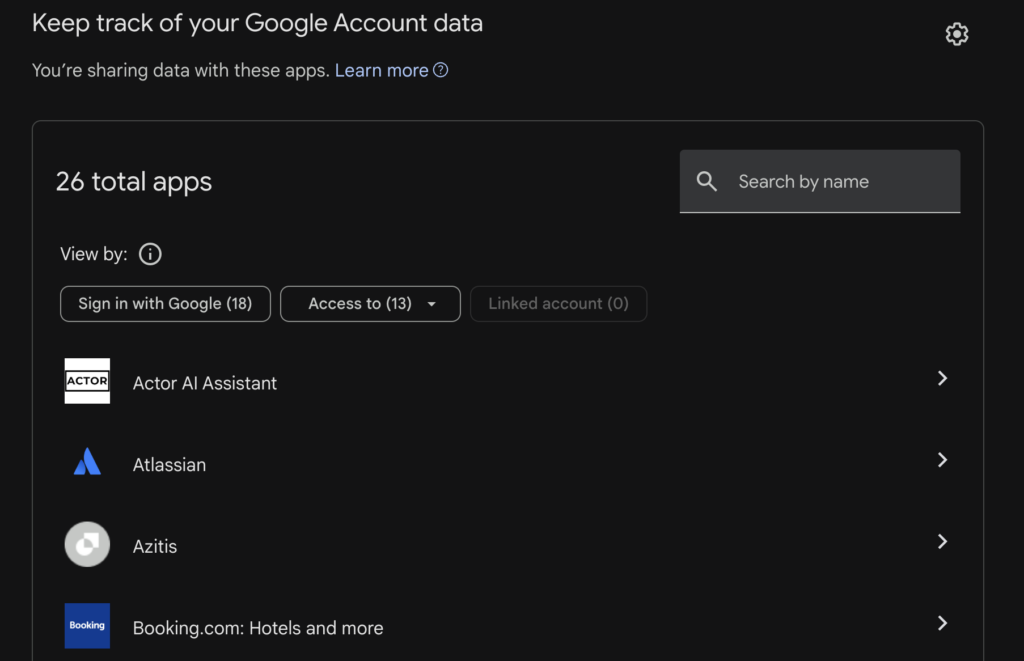
- Go to your Google Account. https://myaccount.google.com/
- Open Linked Apps from the menu.
- Select See all connections.
- Find the app you want to disconnect.
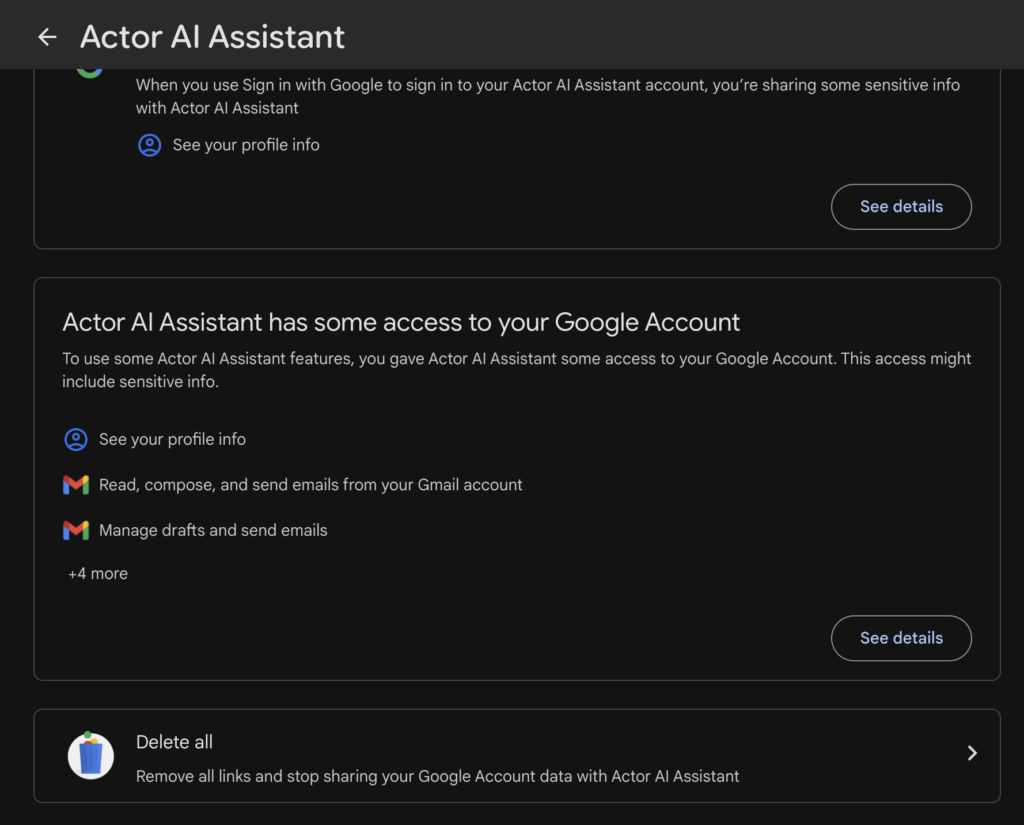
- Open the app details.
- Select Delete all (at the bottom) or click See Details and then Remove All access.
After you remove access, the app will no longer be able to use your Google account permissions.
What happens after disconnecting Actor
Once access is removed:
- Actor can no longer access Gmail, Calendar, Drive, or any other Google service previously approved by you.
- Existing automations, email features, calendar workflows, or connected account features may stop working.
- You can reconnect your Google account later if you want to use Actor again.
Actor deletes all your data within 7 days if there is no access possible to your account.
When should you remove access?
Remove access when you no longer use the app, connected the wrong Google account, are reviewing security settings, or want to clean up old apps.
Reviewing connected apps regularly is a good security habit, especially for apps that can access Gmail, Calendar, Drive, or account data.