
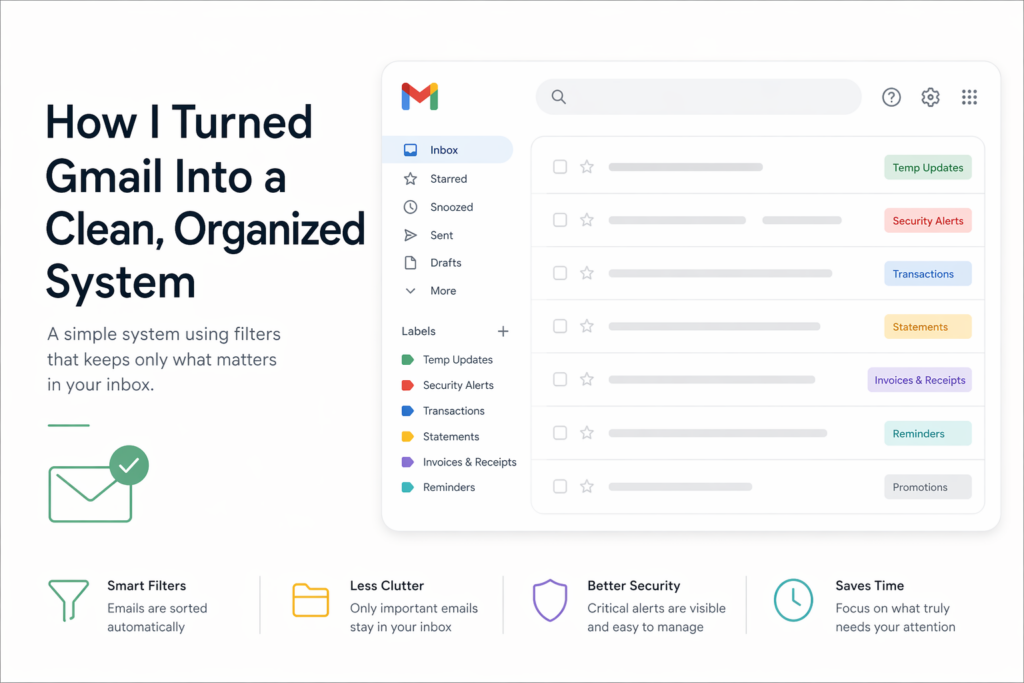
How I turned Gmail into a clean, organized System (no more Inbox Chaos)
Most people treat their inbox like a to-do list… and that’s exactly why it becomes overwhelming.
The fix isn’t checking email less.
It’s designing a system where emails organize themselves automatically.
Everything below runs directly inside Gmail, without external tools, no hacks.
One Setting You Shouldn’t Skip
When creating filters, always enable:
“Also apply filter to existing matching emails”
This instantly cleans your current inbox instead of only organizing future emails.
1. Temporary Notifications (OTPs, Deliveries, Status Updates)
These emails are useful for a few minutes… then useless forever.
Think:
- OTPs
- Delivery updates
- Order tracking
- Verification codes
What I do:
- Auto-label them →
Temp Updates - Skip inbox (they never appear in Primary)
I just bulk delete anything older than a week once a month.
Example filter:
("one time password" OR otp OR "verification code" OR "out for delivery" OR "arriving today" OR "order update")
-("bank" OR "transaction" OR "payment received") smaller:200k
2. Security Alerts (Keep Visible, But Controlled)
These are important:
- New logins
- Password changes
- 2FA alerts
But they shouldn’t get lost.
What I do:
- Label →
Security Alerts - Keep in inbox
- Mark as important
Once I’m sure everything is fine, I archive them.
Filter idea:
("new login" OR "login alert" OR "password reset" OR "security alert" OR "2fa")
3. Transactions (Important Data, Not Inbox Noise)
Every card payment, UPI, or bank alert doesn’t need your attention immediately.
But you do want them stored.
What I do:
- Label →
Transactions - Skip inbox
- Send to Updates category
I only check them when reconciling expenses.
Filter idea:
from:(yourbank.com OR paypal.com OR stripe.com OR wise.com)
-("statement" OR attachment)
4. Statements (Long-Term Financial Records)
These are different. They matter long-term.
What I do:
- Label →
Statements - Keep in Primary inbox
- Mark important
You can optionally:
- Download and store in Drive
- Or keep email as archive
Filter idea:
from:(yourbank.com) ("statement" OR "account statement") has:attachment
5. Invoices & Receipts (Your Hidden Goldmine)
This is one of the highest ROI filters.
You’ll thank yourself during:
- Tax season
- Refunds
- Warranty claims
What I do:
- Label →
Invoices & Receipts - Keep in inbox (not marked important)
Filter idea:
("invoice" OR "receipt" OR "payment confirmation") has:attachment
-("statement")
6. Reminders & Task Notifications
Emails from tools like:
- Notion
- Calendar alerts
- Task apps
These should stay visible.
What I do:
- Label →
Reminders - Keep in inbox
- Mark important
Filter idea:
from:(calendar-notification@google.com OR mail.notion.so)
("reminder" OR "event starting" OR "due")
7. Marketing Emails (Let Gmail Handle It)
You don’t need to over-optimize this.
Gmail already separates promotions well.
Just:
- Enable Promotions tab
- Review occasionally or bulk delete
- Use Subscription Management
8. Custom Filters Based on Your Work
This is where things get powerful.
Create filters specific to your workflow:
Examples:
- Domains & hosting → GoDaddy, Namecheap
- SaaS tools → invoices + updates
- Clients → labeled by company name
- Internal work → high-priority inbox
This turns Gmail into a mini operating system for your work.
9. Auto-Clean Subscriptions (Quick Win)
Inside Gmail:
- Go to Manage Subscriptions
- Unsubscribe from low-value senders
This alone can cut 30–50% of incoming noise.
10. Bonus: Add a “Waiting / Follow-Up” System
Most people miss this.
Create a label like:
WaitingFollow-Up
Use filters or manual tagging for:
- Emails you replied to but need a response
- Important pending conversations
This removes the need to “keep emails unread” as reminders.
What This System Actually Changes
After setting this up:
- Your inbox shows only what matters
- No OTP clutter
- Financial data is structured
- Receipts are easy to find
- You stop “checking email”… and start using it intentionally
Manual vs AI Automation
Most people can build a solid inbox system manually using filters like the ones above, but it takes time, constant tweaking, and still breaks the moment your patterns change.
That’s where AI flips the model. Instead of you defining rules, the system observes how you handle emails. It considers what you open, ignore, reply to, or archive, and adapts automatically.
No need to maintain filters, update keywords, or worry about edge cases. Manual setup is static and rule-based; AI automation is dynamic and behavior-driven. One keeps your inbox organized, the other actively manages it for you.
If you haven’t tested Actor Studio , it’s a free tool that integrates and delivers for you.
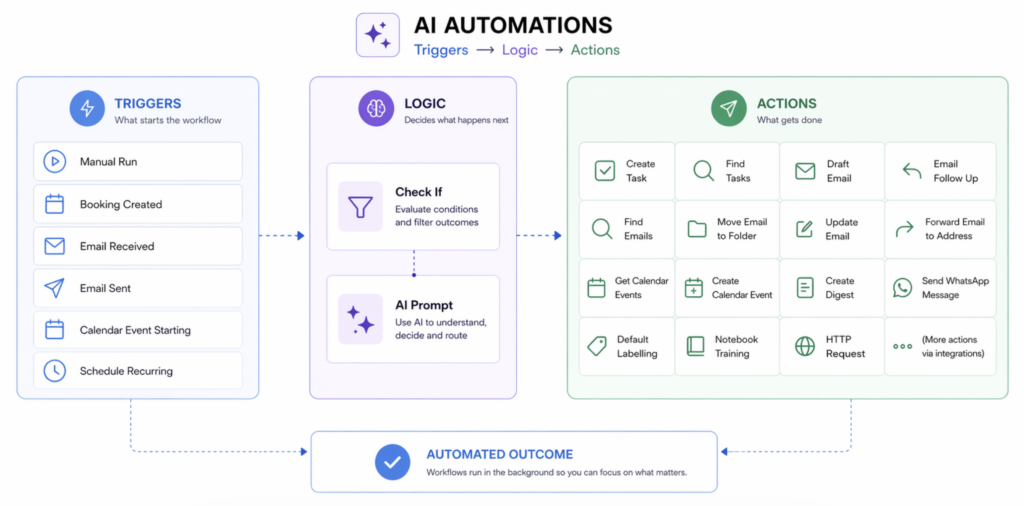
Create a free account on Actor to automate Gmail, Calendar and Tasks