Notification vs Read Later: How to organize Inbox with those labels
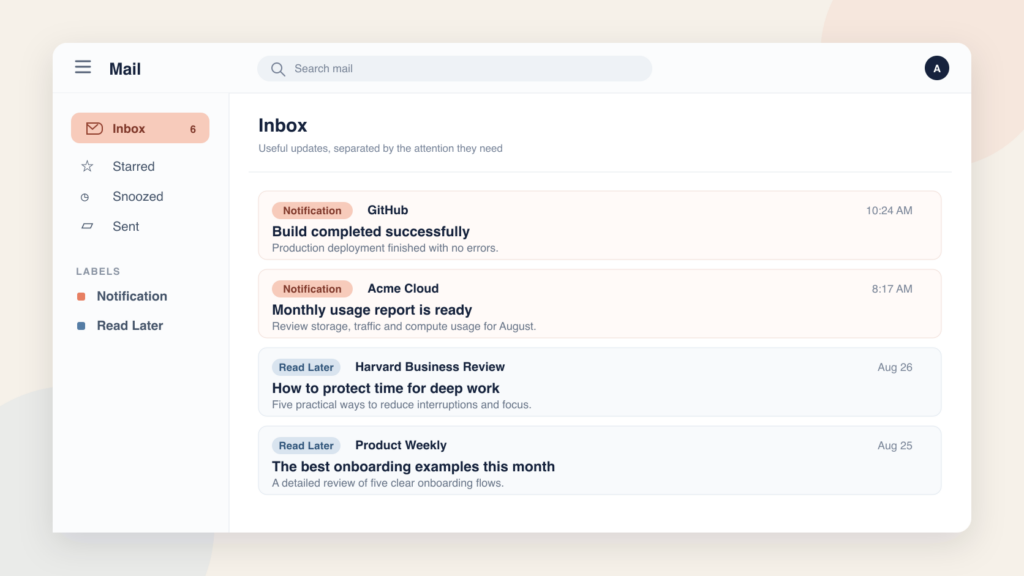
Your inbox probably contains many kinds of email: messages that need action, those you need to reply or follow-up with, updates you only need to notice, newsletters, and useful content you want to read when you have time.
Many of them can be separated with two labels, Notification and Read Later. Both are not actionable and have a small difference.
- Notification for quick, informational updates
- Read Later for content that deserves focused reading
This small distinction keeps status messages and newsletters from competing with emails that need a reply or decision.
Both labels could be applied automatically using Actor DO Email Assistant. Get time back having your own assistant on one or multiple email accounts.
Create a free ActorDo account here
Notification vs Read Later: the short answer
Use Notification when an email tells you that something happened and can usually be understood in a few seconds. Examples include a successful software deployment, a payment confirmation, or a monthly usage summary.
Use Read Later when the content itself is valuable and needs several minutes of attention. Newsletters, reports, guides, case studies, and longer product updates belong here.
If an email needs a reply, decision, task, payment, or urgent check, it belongs in neither label. Keep it in the inbox or move it into an action system.
How the two labels differ
The easiest test is to ask what you will do when you open the label.
| Question | Notification | Read Later |
|---|---|---|
| Why keep it? | To know that something happened | To learn, think, or explore |
| Time per email | Usually a few seconds | Usually several minutes |
| Best review time | Once or twice a day | During planned reading time |
| Common senders | Software tools, payment services, delivery systems | Publishers, researchers, experts, product teams |
| What happens next? | Confirm, then archive | Read, capture anything useful, then archive |
Combining both types in one label creates another crowded inbox. Keeping them separate lets you scan operational updates quickly and protect a different block of time for reading.
Which emails belong in Notification?
Notification works best for messages that answer the question: What changed?

Good examples include:
- “Build completed successfully” from a development tool
- “Your payout is on the way” from a payment provider
- “Monthly usage report is ready” from a cloud service
- “Backup completed” from a storage service
- “Your package was delivered” from a delivery company
- A receipt for a purchase you already recognize
The important detail is that no action is expected. “Payment received” can be a notification. “Payment failed. Update your card” is an action email and should stay visible.
Be careful with security messages. An unfamiliar sign-in or password reset should not disappear into a batch. Treat it as urgent until you know it is safe.
Which emails belong in Read Later?
Read Later answers a different question: What is worth my attention when I have time to think?

Good examples include:
- A weekly industry newsletter
- A report or research summary
- A product guide you want to study
- A detailed case study
- A thoughtful article from a trusted source
- Release notes that are relevant but not urgent
Be selective. Read Later should not become a polite name for “probably never.” If you would not choose to read the email during a 20-minute focus block, unsubscribe or archive it.
What should stay out of both labels?
Neither label should hide work you have promised to do. Keep these messages in your inbox, task list, or a separate Action label:
- A customer question that needs a reply
- An invoice that needs approval or payment
- A meeting invitation you need to accept or decline
- A document waiting for review
- A request with a deadline
- A security alert that may require investigation
This rule makes both queues trustworthy. Open Notification when you want to scan. Open Read Later when you are ready to read. Look elsewhere for work that needs action.
Add filters for predictable email
Gmail filters work well when a message is easy to identify by sender or subject.
A Notification filter might match a trusted automated sender or a subject such as “backup completed.” A Read Later filter might match a newsletter address or the subject prefix used for a weekly digest.
In Gmail, open the search options, enter the criteria, select Create filter, and choose Apply the label. You can also choose Skip the Inbox when you are certain every matching email is non-actionable. See Google’s Gmail filters guide for the current steps.
Avoid broad rules such as labeling every message from a no-reply address as Notification. Some no-reply emails report failed payments, account problems, or other issues you should see.
For a sender-specific walkthrough, see How to Auto-Label Gmail Emails from the Same Sender.
In Outlook you can use either a dedicated folder or you can use categories (similar to labels)
Give each label a review time
The labels only help if you review them differently.
- Check Notification once around midday and once near the end of the day. Scan, confirm, and archive.
- Check Read Later during one or two planned reading blocks each week.
- If a Read Later email creates a next step, turn that step into a task. Do not keep the email unread as a reminder.
- If an item has waited for several weeks, read it, archive it, or unsubscribe.
Gmail’s Snooze feature solves a different problem. Snooze a message when you want it to return at a specific time. Use Read Later when you want a reading queue without a deadline.
Let Actor categorize Notification and Read Later automatically
Sender-based Gmail filters are useful, but they cannot always judge what a message means.
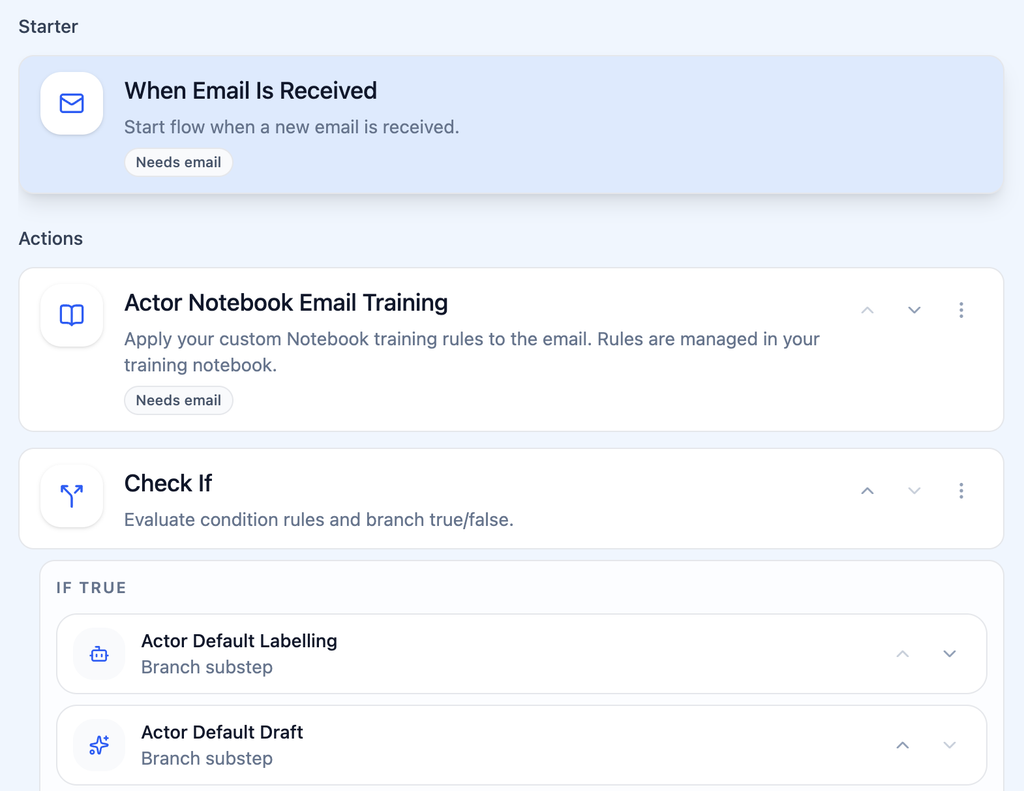
Notification and Read Later are part of Actor’s default email label system. Actor can analyze incoming Gmail and Outlook messages and apply the right label automatically.
The practical rules are simple:
- Apply Notification to successful system updates, routine confirmations, and status summaries that need no action.
- Apply Read Later to newsletters, reports, educational articles, and non-urgent product updates.
- Apply neither label when the message asks for a reply, contains a deadline, reports a failure, or describes a security problem.
You can train Actor using your past categorization and add custom rules for cases that are specific to your work. This gives you more flexibility than maintaining a long list of senders in Gmail.
Actor can reuse matching labels that already exist. You can also review changes before applying them if you do not want the process to run fully automatically.
Try the system for one week
Create both labels and sort messages manually for three days. Notice which messages are hard to classify, then adjust the definitions before adding filters or automation.
At the end of the week, check two things:
- Did action-required email stay visible?
- Did you review both labels at the times you planned?
If both answers are yes, keep the system. Then use Gmail filters or create an Actor account to reduce the manual sorting.
Two labels are enough to create a useful boundary: Notification is for awareness, Read Later is for attention, and your inbox remains the place for action.
Gmail and Actor capabilities checked on September 22, 2026.